Updating a fleet of firewalls has two bad speeds. Update everything at once, and a bad release reaches every site at the same time. Update by hand, one box at a time, and the fleet ends up on different releases while nobody can say which. ndcli run firmware-upgrade gave you the command. It never gave you the staging: it sends an upgrade to the devices you name, when you say.
Firmware tracks add the staging. You sort devices into three tracks, fast, regular and stable, and NetDefense holds each device at an exact OPNsense release. A release reaches the next track only after it has soaked in the one before and enough of that track’s devices have run it. Devices move at windows on a schedule you choose.
It’s live in the web app and in ndcli 1.39.0, and agents run it from 1.25.0, series upgrades included.
TL;DR
- You choose devices by name. Each track runs on a schedule, and NetDefense holds a device in a track at an exact OPNsense release between windows.
- A release enters regular and stable only after it has soaked in the track before, and enough devices there have run it. You can promote a release to one track or all three when it can’t wait.
- Halting a release stops it everywhere. Nothing is rolled back: devices already on it stay on it.
- Series upgrades, OPNsense 26.1 to 26.7, use the same tracks. They are off until you switch them on for a track, and they take the device offline, reboot it three times and have no automatic rollback.
- Web app,
ndcli firmwareand 18 MCP tools. Agent 1.25.0 or later.
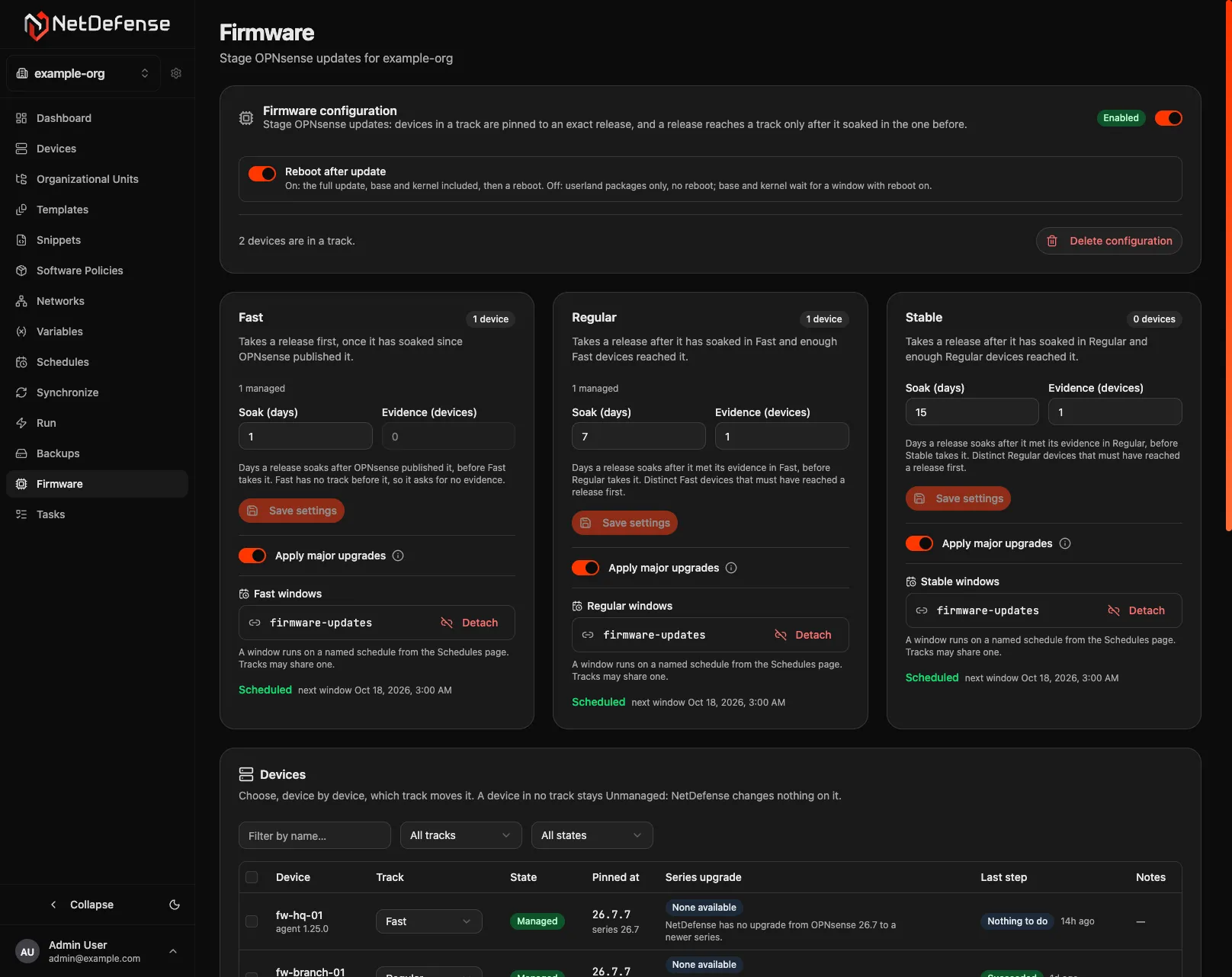
How a release moves down the tracks
Every device starts Unmanaged: in no track, and untouched by this feature. Add a device to a track and its agent pins it at the release it already runs, through OPNsense’s own firmware setting. Nothing is installed, and nothing reboots. After that, the device moves only at its track’s windows, to the release its track has approved for its OPNsense series.
Each track decides what to approve from two settings. Soak is the number of days a release waits. Evidence is the number of distinct devices of the previous track that must have run it first. The defaults:
| Track | Soak | Evidence | Takes a release after |
|---|---|---|---|
| Fast | 1 day | none | the soak has passed since OPNsense published it |
| Regular | 9 days | 1 device | fast approved it, 1 fast device ran it, and the soak has passed |
| Stable | 10 days | 1 device | regular approved it, 1 regular device ran it, and the soak has passed |
In regular and stable the soak counts from the later of the previous track’s approval and the moment the evidence was met, so a release can’t skip the proving. While a release has an unresolved failure in an earlier track, the tracks after it won’t take it, and a halted release is taken by no track. All the numbers are yours to change: soak from 0 to 365 days, and evidence from 0 to 1000 devices, except in fast, which asks for none.
Approval is not installation
A track approving a release only decides what its next window sends. Devices install at their windows, and only in a track that has an enabled schedule. A track with no schedule moves nothing, and enabling Firmware doesn’t attach one.
The earlier track needs devices
With the defaults, regular needs a fast device to have run a release, and stable needs a regular one. If too few devices in the earlier track can still reach it, the release stalls, and the Rollout card says so. Add devices to the earlier track, lower the evidence count, or promote the release.
Set it up
The web app does the same from the Firmware page: Enable Firmware, attach a schedule on each track’s card, move devices in the Devices card, and watch the Rollout card.
Devices are chosen by name, one by one or up to 500 in one request, all or nothing. There is no OU and no pattern. A device whose agent is older than 1.25.0 can join a track, but it is sent nothing until its agent is upgraded. One setting, Reboot after update, is on by default for the whole organization: a window applies the full update, base and kernel included, then reboots. Turn it off and windows apply userland packages only.
Promote, halt, clear
Staging is a default, not a cage.
Promote approves a release in one track or in all three, skipping its soak and its evidence. It asks for confirmation, and it approves rather than installs: devices receive the release at their track’s next window. Halt stops a release in every track and cancels the steps queued for it that haven’t gone out. Lift the halt, and the release competes for the tracks again.
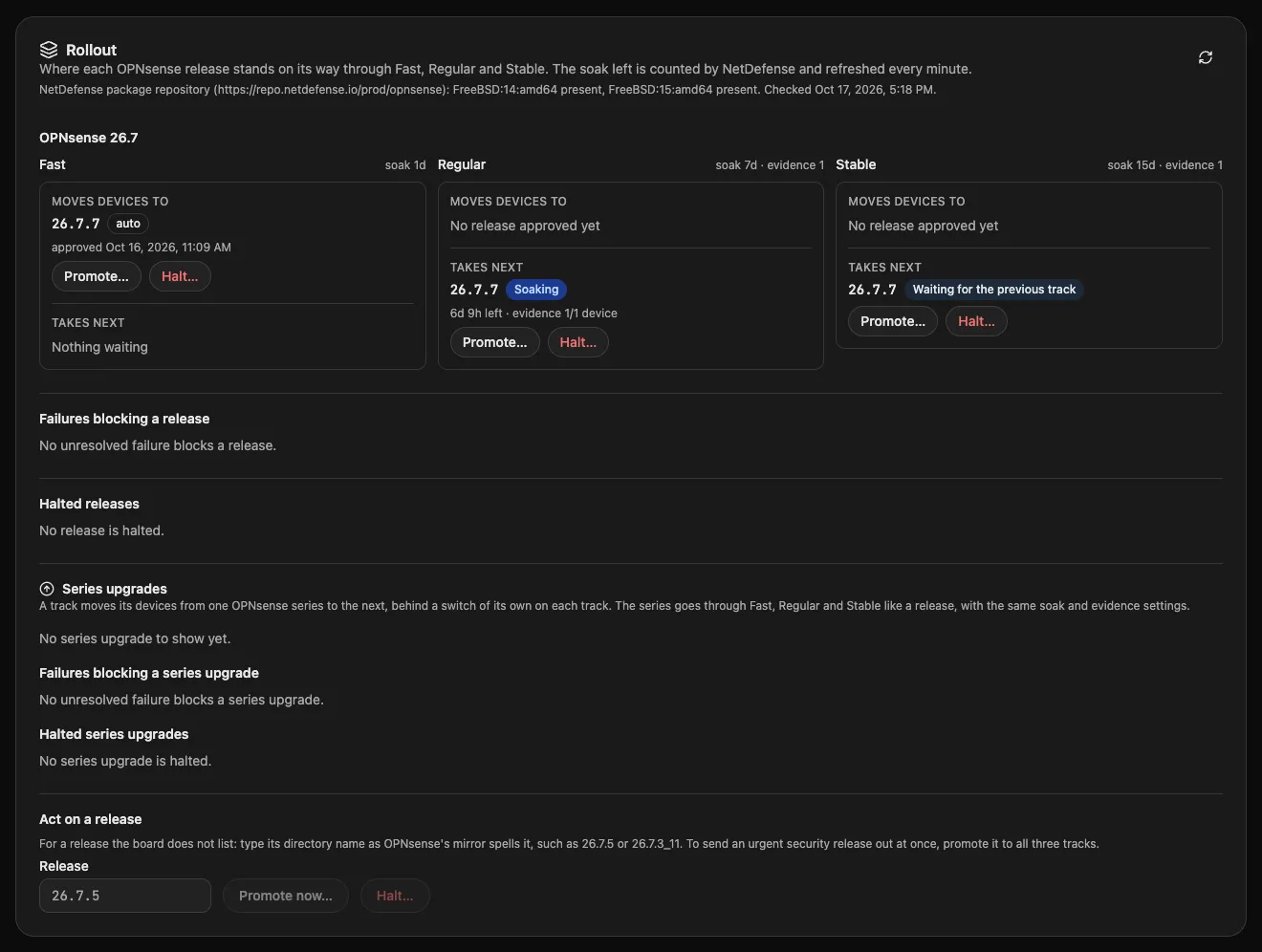
A step that fails, or that never gets an answer from the device, blocks that release in the later tracks until the same device later reaches it or you run ndcli firmware failure clear. A hold is different. When the agent can name a precondition that isn’t met, such as a reboot already pending or another firmware job running, it changes nothing and reports why. A held step isn’t a failure, and the next window tries again.
Halting is not rolling back
Devices already on a halted release stay on it. Moving a device out of a track, halting a release and disabling Firmware all leave devices on the release they run. Disabling Firmware isn’t a pause either: it takes every device out of its track, and enabling it again doesn’t bring them back. To stop updates and keep devices in their tracks, halt the release or detach the track’s schedule.
What the firewall shows
On the firewall, the pin is OPNsense’s own Flavour setting, under System > Firmware > Settings. It normally reads (default), and (custom) with a folder such as 26.7/MINT/26.7.3/latest while the device is pinned. While it is there, OPNsense’s Check for updates, Update and automatic updates see nothing newer than the pin from OPNsense’s repositories.
The pin is a guardrail, not a lock. Only OPNsense’s own repositories are pinned. The NetDefense repository and any repository you added still update. A release’s folder can take hotfix revisions, and an upgrade you start by hand from the OPNsense interface, the console or cron isn’t blocked. Reset the Flavour by hand and the agent puts the pin back. The way out of a track is to move the device to Unmanaged, which restores the setting the device had before it joined. A device that stays out of contact for 30 days leaves its track: the agent removes its pin and NetDefense moves it to Unmanaged, each on its own clock.
For the pin, the agent writes that one setting and no other. A device with a subscription, a non-default release type or a Flavour of its own is held and never pinned.
Series upgrades are separate, and off by default
A track can also move its devices to the next OPNsense series. Today there is one supported upgrade, OPNsense 26.1 to 26.7, and OPNsense itself says that 26.1 has reached its end of life. The series travels through the tracks like a release does, with the same soak and evidence settings. A device is upgraded only in a track whose switch is on, and the switch is off for every track until you turn it on:
The CLI lists what an upgrade does and asks first. In the web app the switch is Apply major upgrades, and it asks for a confirmation that lists the same warnings.
No automatic rollback
A series upgrade takes the device offline for its whole length, reboots it three times and has no automatic rollback. A power cut during the base or the package install leaves a device that does not come back by itself. It then needs the console, or a restore of a VM snapshot.
What that means in practice:
- It is OPNsense’s own upgrade. The agent asks OPNsense to run its major upgrade, the same job as the Upgrade button. It downloads about 1.2 GiB, needs a link of about 3 Mbit/s or better to finish inside its step, and needs 3.25 GiB free on the filesystem that holds the update cache.
- A device has to qualify first. It must run agent 1.25.0, be on the last release of 26.1, and have shown that release to its track at an ordinary window. The upgrade follows at the window after.
- High-availability pairs are held. A node with a CARP virtual IP, a pfsync interface or a configuration-sync address isn’t upgraded by NetDefense. You upgrade its nodes by hand.
- Don’t interrupt it. A power cut during the base or the package install can leave a firewall that needs the console.
- The ZFS boot environment isn’t a rollback. Before the upgrade the agent makes one when the pool has room, on by default and switchable per device. It is a recovery path from the console only. Booting back into it is unproven, the agent never removes it, and one accumulates per upgrade.
- After a rollback by hand, stop the track from upgrading the device again, re-bind the device, then clear the failures it caused. A rollback takes the agent’s state back with it, and until the re-bind its answers are dropped.
Take a VM snapshot first, keep console access, and try one device first. The switch is per track, and a window upgrades every eligible device of the track at the same time, so switch it on for a track that holds only your test device. The Firmware Series Upgrades guide has the full list of checks, holds and recovery steps.
What firmware tracks don’t do
- They don’t roll anything back. Leaving a track, halting a release and disabling Firmware leave devices on the release they run, and a series upgrade has no automatic rollback.
- They don’t pick devices by OU or pattern. Names only, up to 500 per request.
- They don’t wait for an offline device. A step is kept only for a short time, so a device that stays offline until it expires misses that window, and the next window tries again.
- They don’t coordinate high-availability pairs. Each node is a device of its own, with its own pin. Two nodes in the same track are sent their step by the same window, and with Reboot after update on, both can restart at once. Put both nodes of a pair in the same track and on the same schedule, because the track is what keeps them on one release. The price is that the pair can be down together.
- They don’t mix with the one-off command. A device in a track is refused
ndcli run firmware-upgrade. Move it to Unmanaged first, or leave its updates to the track. - They’re a plan feature.
ndcli org quota <org>shows whether Firmware Tracks is on for your organization. Without it, everyndcli firmwarecommand answersFEATURE_NOT_AVAILABLE, unless the organization already has a configuration: then its reads, and four changes that wind it down, keep working.
Getting started
Upgrade ndcli to 1.39.0 or later (see the CLI getting started guide), and make sure the devices you want in tracks run agent 1.25.0 or later. Then follow the Firmware Tracks guide. It covers setup in the web app and the CLI, promoting, halting and clearing, the plan rules, and a table of the common hold reasons and what to do about them. The reasons that belong to series upgrades are in the Firmware Series Upgrades guide. Firmware tracks on the firewall shows what you will see in OPNsense. The same controls are in the Firmware page manual, in the ndcli firmware reference, and as 18 tools in the MCP server. Over MCP, ten of them only preview until you call them with confirm: true.
Join the discussion in our Community