Everything you need to run an OPNsense fleet
Fleet-wide rules and policies, backups, upgrades and remote access, in one web console. When you'd rather script it, the same fleet is in the CLI and your AI assistant.
See the whole fleet
Know which firewalls need attention, and why.
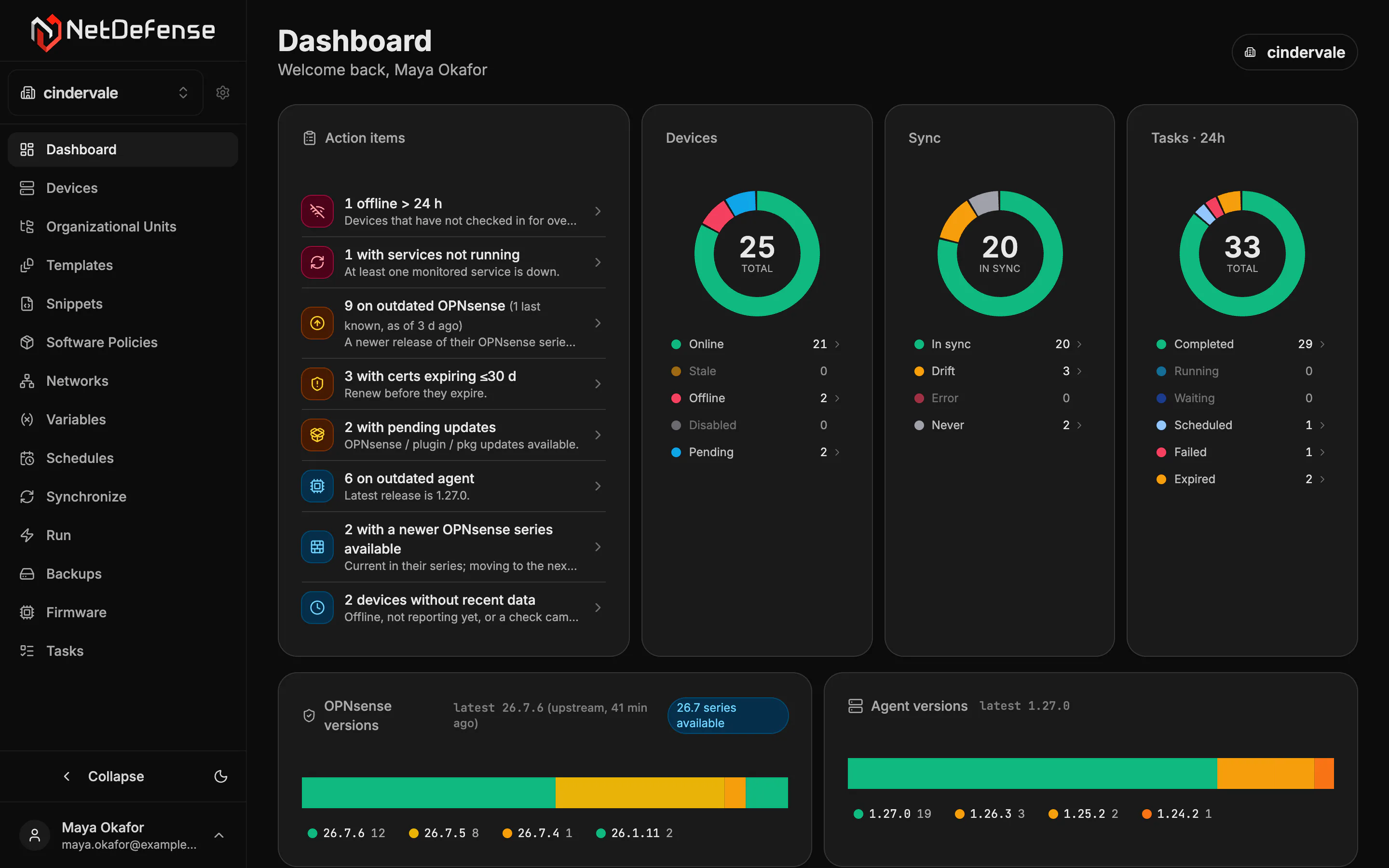
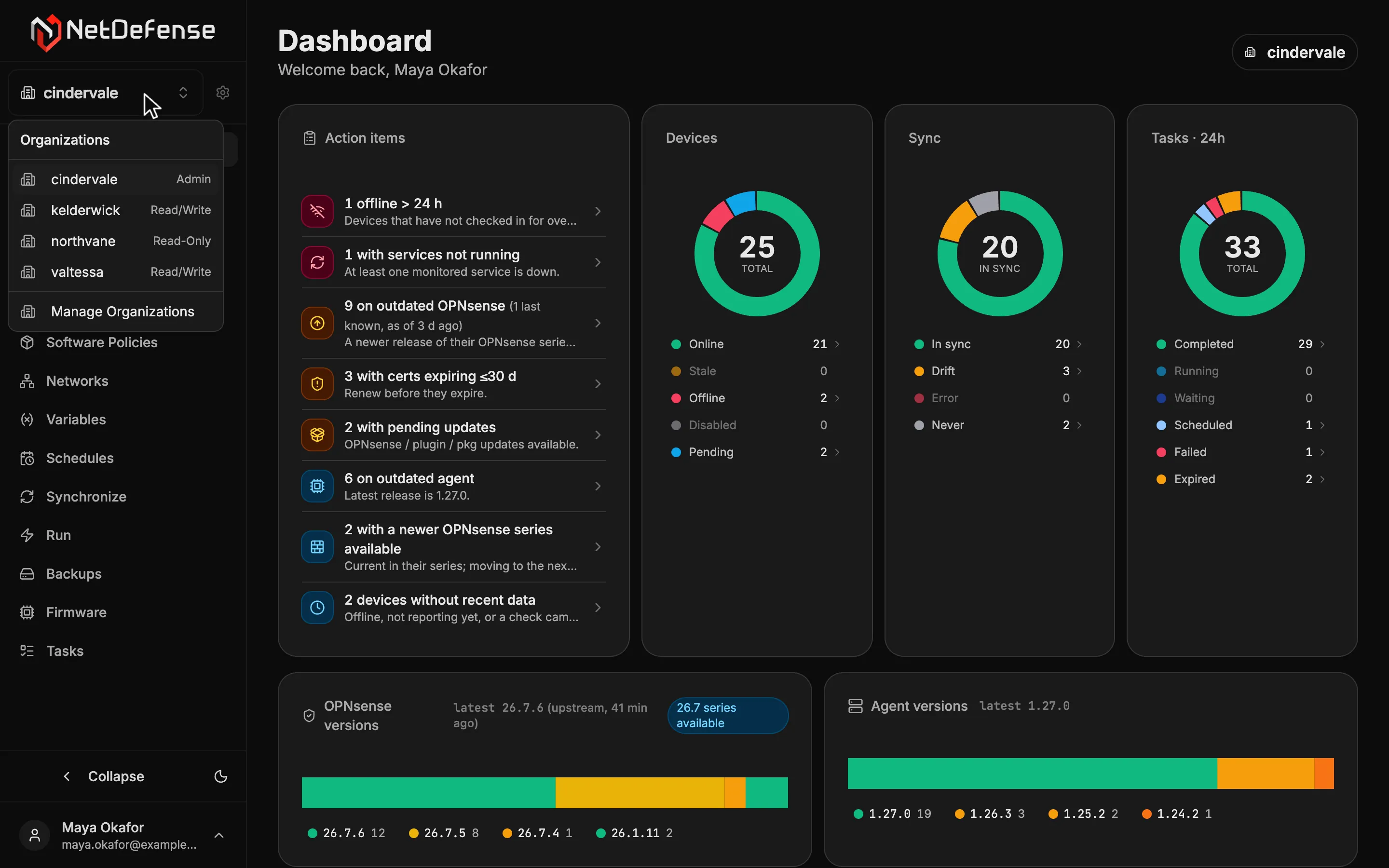
The dashboard turns every firewall's reports into one fleet view and a to-do list, most urgent first, and refreshes itself every minute.
- Action items Devices offline for over a day, failed syncs, stopped services, certificates expired or expiring within 30 days, pending updates and outdated agents, counted and listed.
- Versions and status at a glance Device, sync and task charts, plus OPNsense and agent version bars measured against the newest release. Click a device or sync slice, or a version, for its devices; a task count opens those tasks.
- Live telemetry and facts The device page refreshes every 30 seconds: load, memory and disks as reported, and services, pending updates and certificates from the agent's 15-minute checks. It shows the reported hostname, versions and interfaces.
Configure once, apply everywhere
Write a rule once. Every firewall gets it, with its own addresses.
Snippets hold the rules and settings you want everywhere, templates bundle them with software policies, and organizational units decide which firewalls get which. Variables fill in what differs from site to site.
- Snippets for what you already run Firewall rules and aliases, users and groups, Unbound DNS, LDAP and Active Directory login, certificates and CAs, and Zabbix. Pull an existing rule off a firewall to start from known-good settings.
- Variables for each site Write ${lan_net} once, set it for the organization, then override it per OU, template or device.
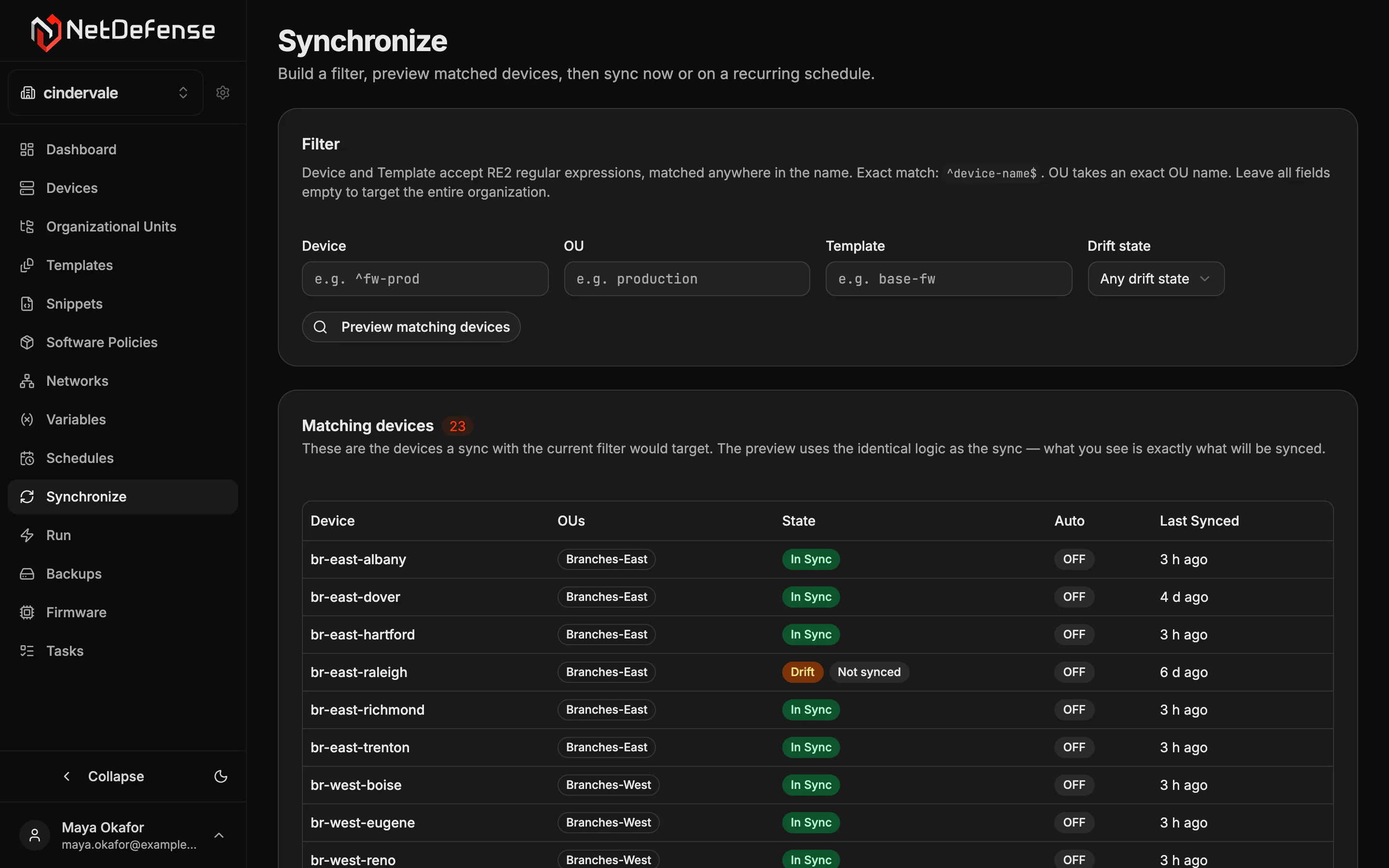
- Sync when you're ready Nothing changes on a firewall until a sync runs, now or on a schedule. Preview which firewalls it will reach, spot drift from changes made by hand, and see what each sync did to every object: created, changed, removed or left as it was.
What stays in OPNsense
NetDefense manages what should be the same on many firewalls. Settings that belong to one box, like its interfaces and hardware, stay in that firewall's own WebAdmin.
Act on many firewalls at once
Ping, restart or upgrade a whole group in one go.
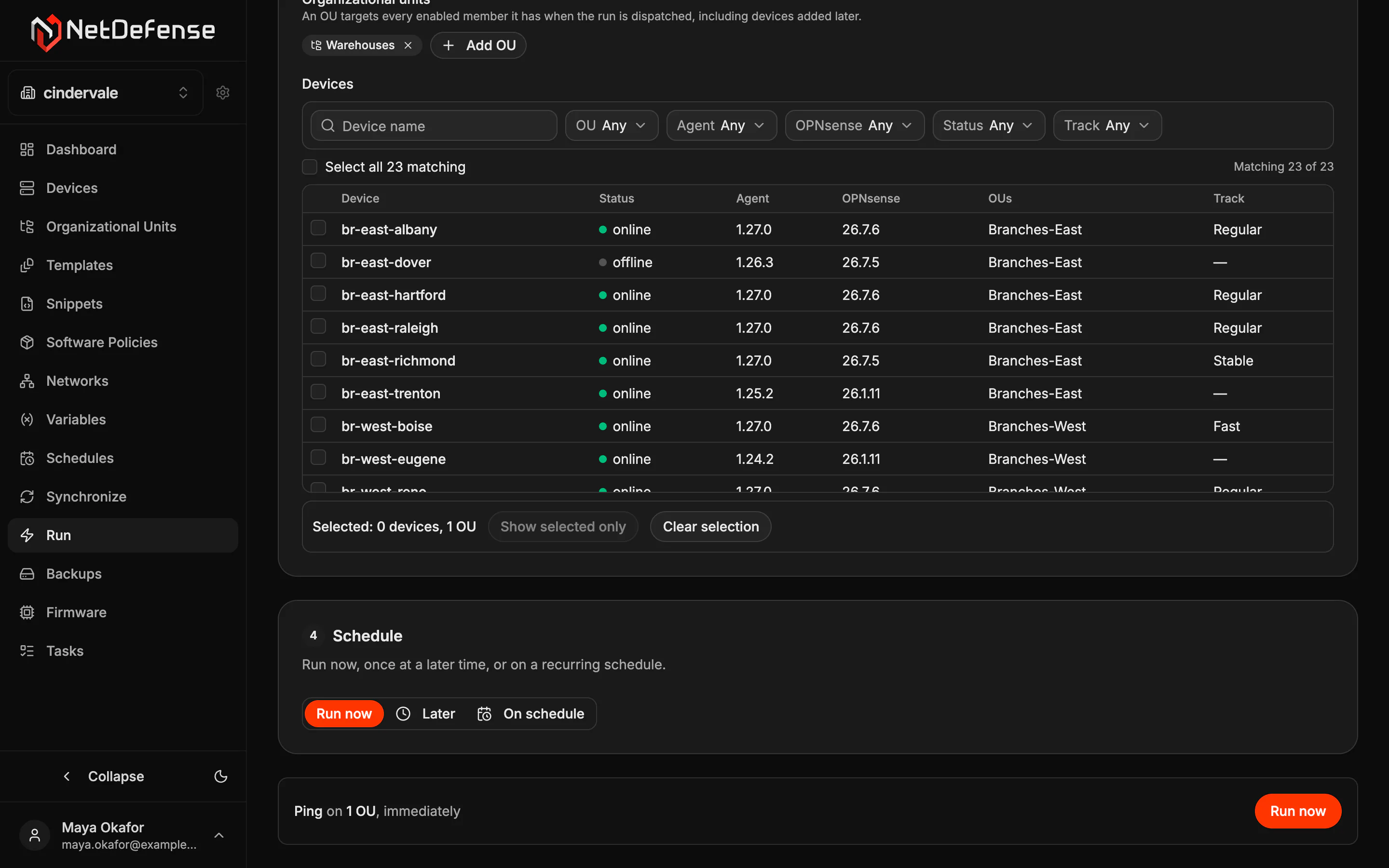
The Run page sends everyday commands to the firewalls you pick, now, once later or on a schedule, and every run lands on the Tasks page. A backup runs now; recurring backups follow the Backups schedule.
- The everyday commands Ping, restart, power off, back up, upgrade firmware with an optional dry run, and install or reload the agent plugin.
- Target a group, not a list Pick devices, a whole OU that follows its membership, or every device a filter matches, and read the summary before you run.
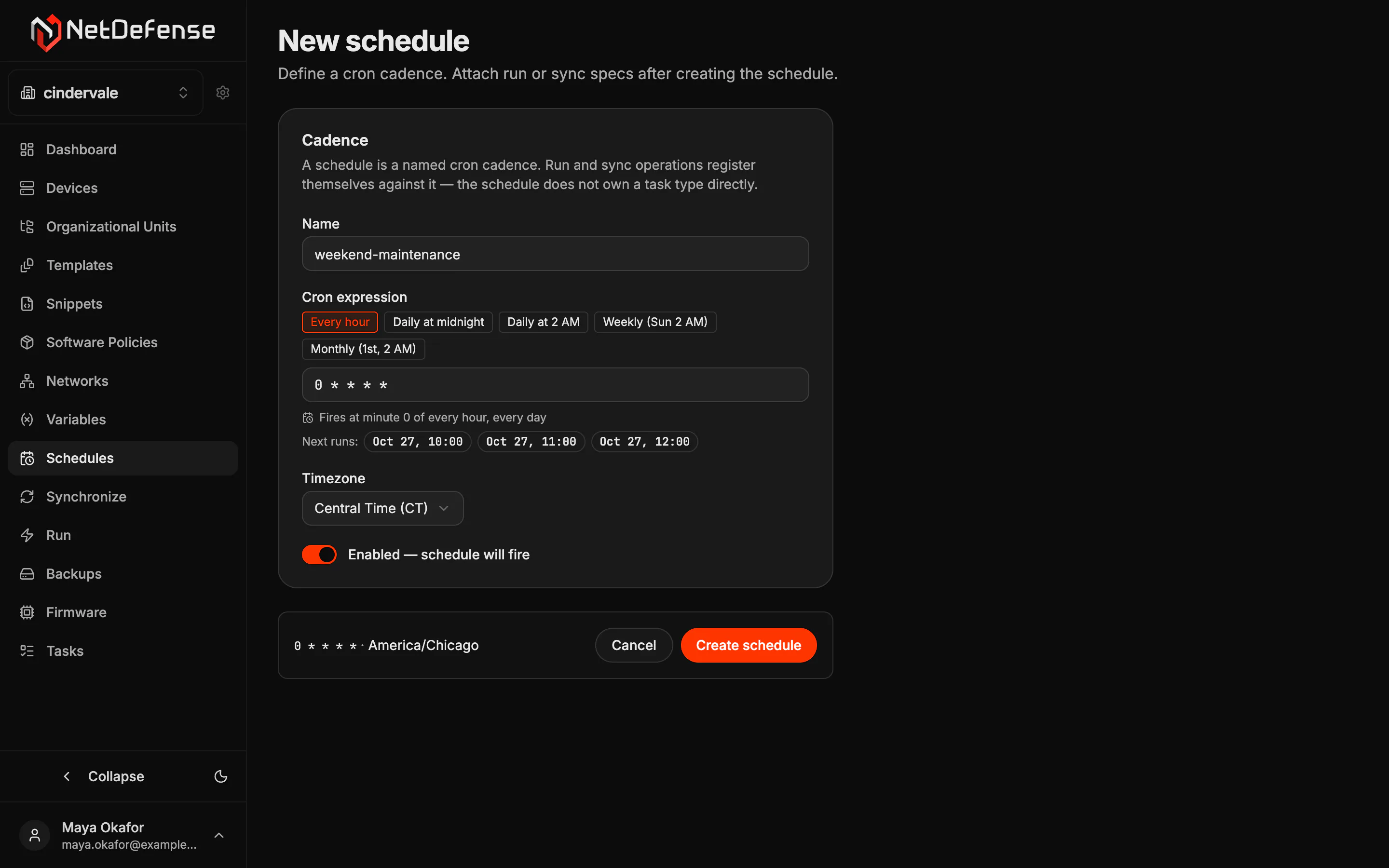
- Schedules and history Named schedules read back in plain words, with their next three runs, before you save them. Finished tasks stay for 30 days, with who or what started them and how they went.
Keep every config safe
Every firewall's configuration, encrypted, in a bucket you own.
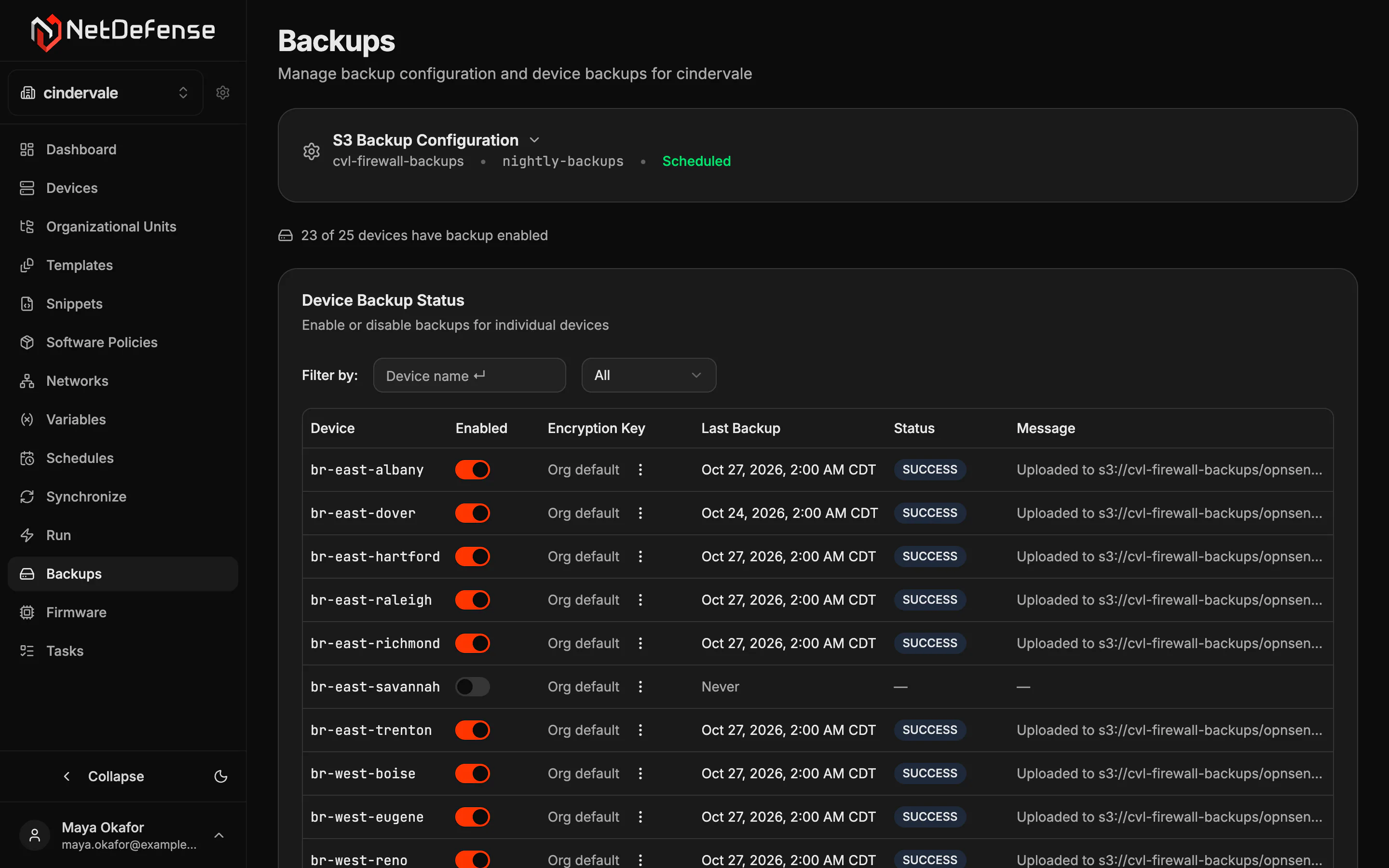
On your schedule or on demand, each firewall's configuration is encrypted on the firewall with a key you set, and sent to your own S3-compatible bucket.
- Your bucket, a key you set An S3-compatible bucket of your choosing, with one key for the organization or a separate key per device.
- On a schedule or right now Attach a named schedule, or back up a device, an OU or the whole fleet from the Run page.
- Status for every device Each firewall's last backup, whether it worked and the message it ended with. The S3 connection test names the cause: rejected credentials, a missing bucket or an unreachable endpoint.
Upgrade without surprises
Let each OPNsense release prove itself before it reaches every firewall.
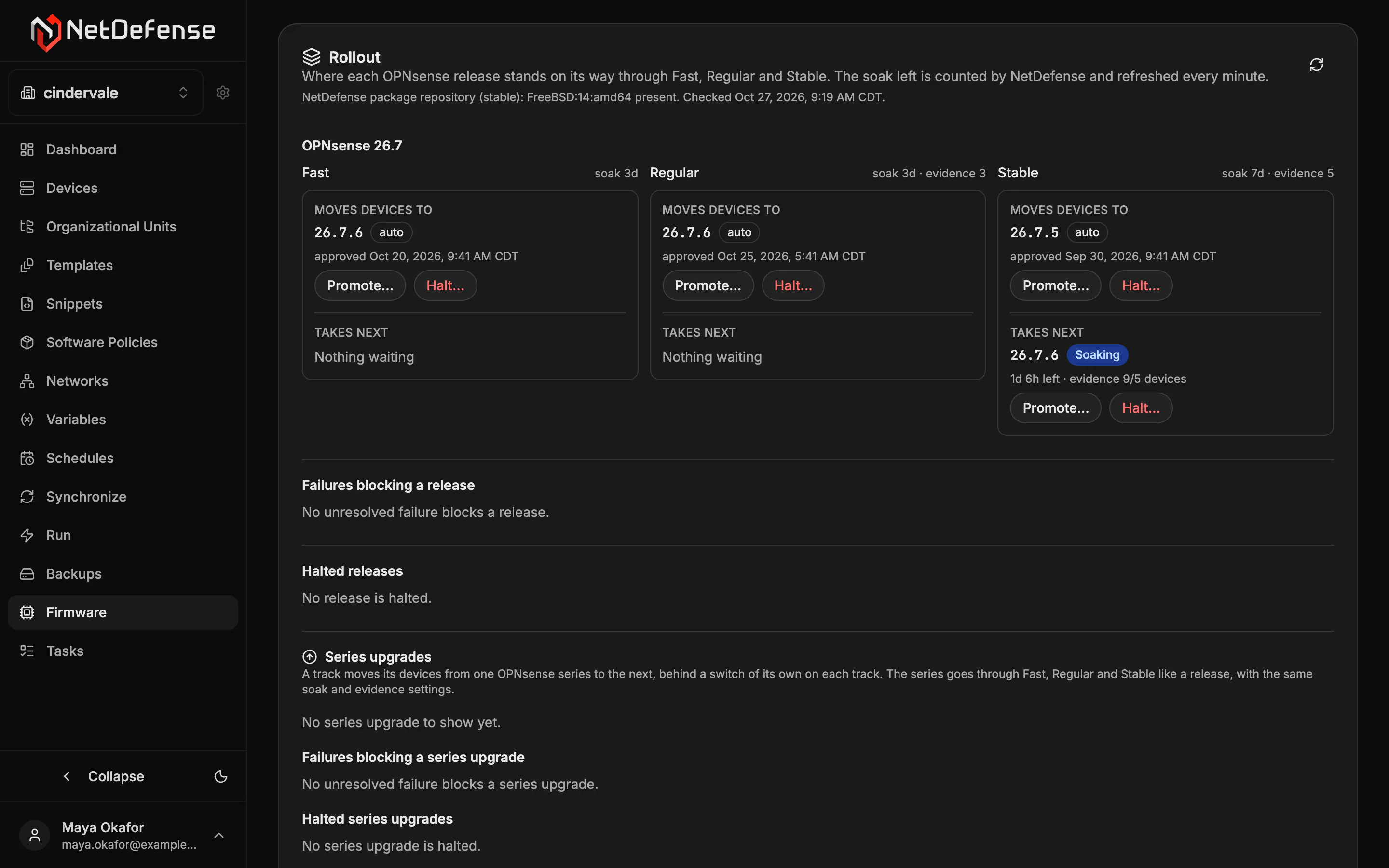
Sort firewalls into fast, regular and stable tracks. NetDefense holds each one at an exact release and moves a release down the tracks only after it has soaked and run on devices ahead of it.
- Soak and evidence A release waits a set number of days in each track, and regular and stable also wait until a device in the track before them has run it. You set both.
- Promote or halt Promote a release by hand when a security fix can't wait, or halt one while you look into it.
- Series upgrades, when you say so Major upgrades (today, 26.1 to 26.7) use the same tracks. They take a firewall offline and have no automatic rollback, so they stay off until you switch them on for a track.
Reach any firewall, open no ports
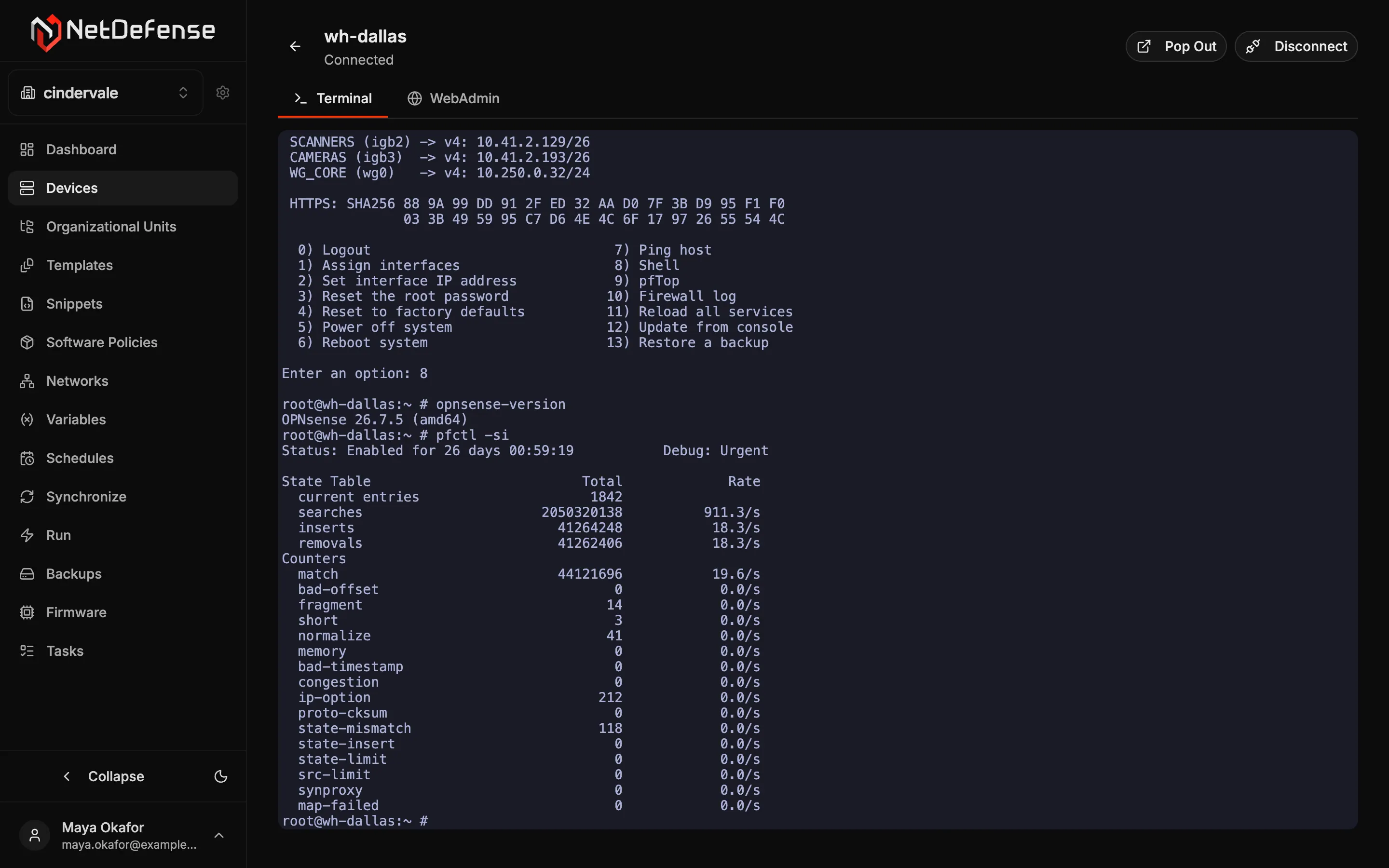
Open a shell on any firewall from your browser, with nothing open inbound.
The agent only ever dials out. When you connect, it opens an outbound tunnel through the NetDefense relay, so a firewall behind NAT or CGNAT is as reachable as any other, as long as it can make an outbound HTTPS connection.
- A terminal in the browser A shell on the firewall in a browser tab, or in your own terminal with NDCLI.
- The firewall's own WebAdmin For settings that belong to one box, open its WebAdmin through the same tunnel, already signed in.
- Read-only for technicians Early access Read-Only members get a WebAdmin-only session as a read-only account: no shell, and configuration saves are blocked on the firewall itself.
Connect your sites
Link your sites with WireGuard, without writing peer configs by hand.
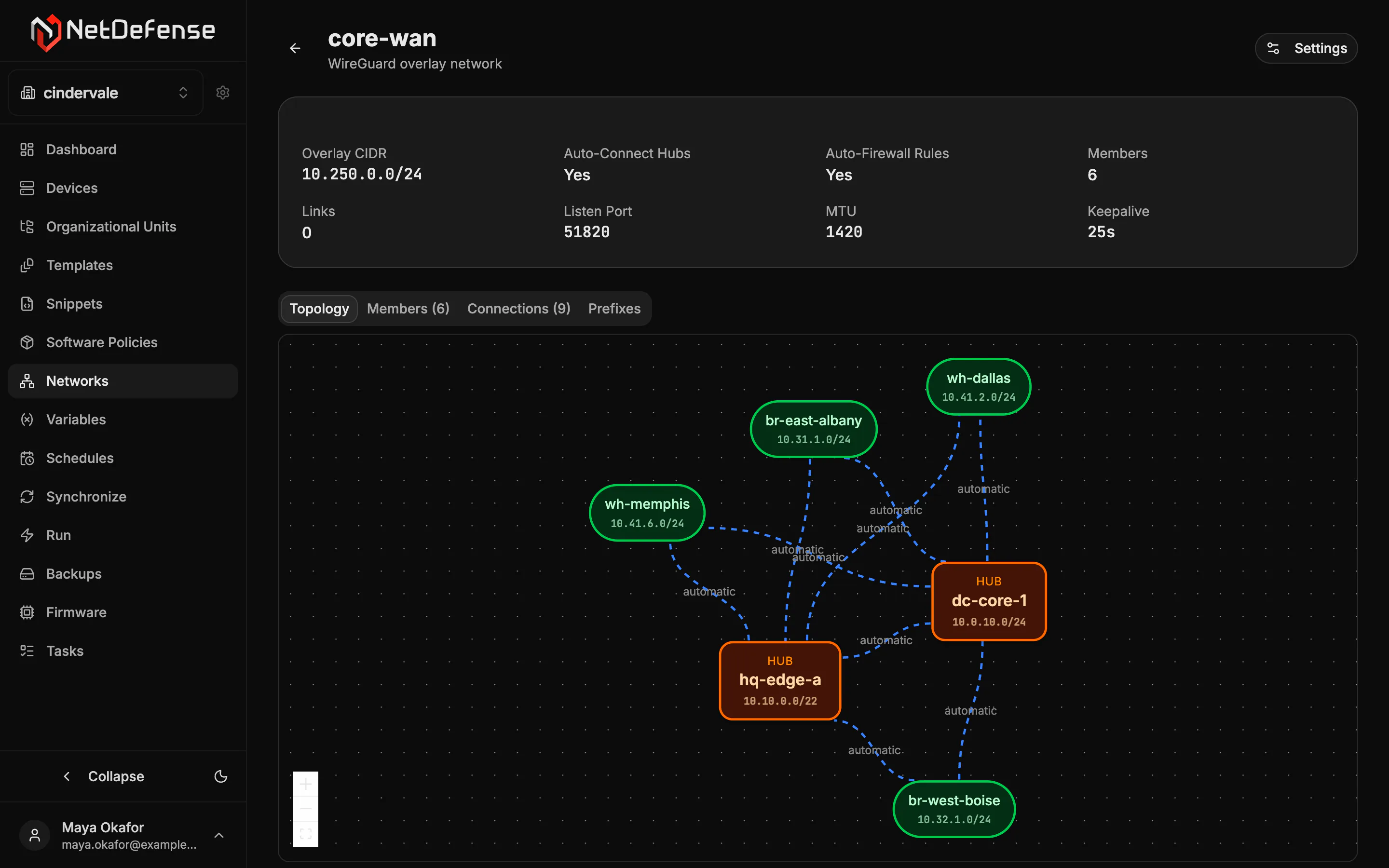
Create an overlay network, mark firewalls as hubs or spokes, and NetDefense generates every member's WireGuard configuration at the next sync.
- Hubs and spokes Hubs need a reachable endpoint. Spokes can sit behind NAT or a dynamic IP.
- Links made for you Hubs peer with every spoke automatically, and with each other and the matching pass rules when you switch those on. Add explicit links where you want more.
- See the topology A graph of each network: hubs, spokes, automatic and explicit links, and the LAN prefixes each member announces.
Built for teams and MSPs
One login for every client, with each client kept apart.
Give each client or site its own organization, with its own firewalls, policies, people and plan, and move between them from one account.
- Roles per organization Invite people as Read-Only, Read-Write or Superuser, one organization at a time.
- Tokens for automation Personal access tokens let scripts and CI pipelines work without an interactive login.
- Support in the console Any member can open a support ticket and follow the replies, Read-Only members included.
Automate & AI
Click it in the console, script it with the CLI, or ask your AI assistant.
NDCLI covers the same fleet from your terminal and your CI pipelines. The MCP server puts it in your AI assistant, with your login and your permissions.
- Scripts and CI List, describe and status commands print JSON for scripts, commands that change something report through their exit status, and personal access tokens let GitHub Actions, GitLab CI or any headless job sign in.
- Your AI assistant Claude, Codex, Gemini CLI and other MCP clients use your login and permissions. Deletes, renames and removals return a preview until you confirm.
- A device console for the assistant It can open a shell session on a firewall, run diagnostics one command at a time and close it when done.
- You: Which firewalls haven't synced in the last week? If they're online, sync them.
-
ndcli.device.listsynced_before: 7d2 devices, both with a recent heartbeat -
ndcli.sync.statusfw-branch-denver and fw-branch-austin: not in sync -
ndcli.sync.applydevice: ^fw-branch-(denver|austin)$Preview: would sync 2 devices - Assistant: fw-branch-denver and fw-branch-austin last synced more than a week ago, and both are out of sync with your templates. A sync pushes the configuration your templates define to these two. Go ahead?
- You: Yes.
-
ndcli.sync.applydevice: ^fw-branch-(denver|austin)$, confirm: true2 sync tasks created -
ndcli.task.listtype: SYNC2 completed - Assistant: Done. Both firewalls are back in sync.
The CLI in action
Recorded NDCLI sessions. Select one to enlarge it.
Trust, then verify
Every command is signed. Every firewall checks.
NDAgent and NDCLI are open source, and the agent acts only on commands that carry a valid NetDefense signature.
- Signed both ways NetDefense signs every command, and the firewall verifies it before acting. The firewall signs every answer with its own key.
- A key that never leaves the firewall Each device generates its private key the first time the agent starts. NetDefense only ever sees the public half.
- Nothing open inbound The agent connects out over TLS, so NetDefense never needs a port opened on the firewall.
Ready to take control?
Start on the Free plan with your lab firewalls, and bring the rest of the fleet when you're ready.
Prefer the terminal? Install the CLI