

Installation
This guide explains how to install the NetDefense plugin on your OPNsense firewall. Choose the installation method that best fits your deployment scenario.
Prerequisites
Before installing the NetDefense plugin, ensure you have:
- 🖥️ OPNsense 25.7 / FreeBSD 14 (amd64)
- 🔑 Administrative (root) access to the OPNsense device
- 🌐 Network connectivity to
repo.netdefense.io - 📋 A NetDefense account with an available registration token
Installation Methods
One-Line Installation
The fastest method uses a single command that automatically handles repository setup and signature verification:
curl -sSL https://repo.netdefense.io/install.sh | shThis script will:
- 🔐 Download and install the repository fingerprint
- ⚙️ Configure the NetDefense repository
- 📦 Update the package database
- ✅ Install the NetDefense plugin
After the script completes, verify the installation:
pkg info os-netdefenseManual Repository Installation
Use this method if you prefer to run each step individually.
-
Install repository fingerprint
Terminal window mkdir -p /usr/local/etc/pkg/fingerprints/netdefense/trustedfetch -o /usr/local/etc/pkg/fingerprints/netdefense/trusted/netdefense \https://repo.netdefense.io/opnsense/fingerprints/netdefense/trusted/netdefense -
Create repository configuration
Terminal window mkdir -p /usr/local/etc/pkg/reposcat << EOF > /usr/local/etc/pkg/repos/netdefense.confNetDefense: {url: "https://repo.netdefense.io/opnsense",priority: 5,enabled: yes,signature_type: "fingerprints",fingerprints: "/usr/local/etc/pkg/fingerprints/netdefense"}EOF -
Update package database
Terminal window pkg update -
Install NetDefense Agent
Terminal window pkg install os-netdefense -
Verify installation
Terminal window pkg info os-netdefense
Offline Package Installation
Use this method for air-gapped environments or testing specific versions.
-
Download the package
Download the latest
os-netdefense-*.pkgfile from the NetDefense repository.Terminal window # On your local machinecurl -L -O https://repo.netdefense.io/opnsense/os-netdefense-latest.pkg# Transfer to OPNsense devicescp os-netdefense-latest.pkg root@your-opnsense-ip:/tmp/ -
Install the package on OPNsense
Terminal window ssh root@your-opnsense-ippkg add /tmp/os-netdefense-latest.pkg -
Verify the installation
Terminal window pkg info os-netdefense
Post-Installation Steps
After installing the plugin, you’ll need to configure it before use. The NetDefense plugin will now appear in the OPNsense web interface under Services > NetDefense.
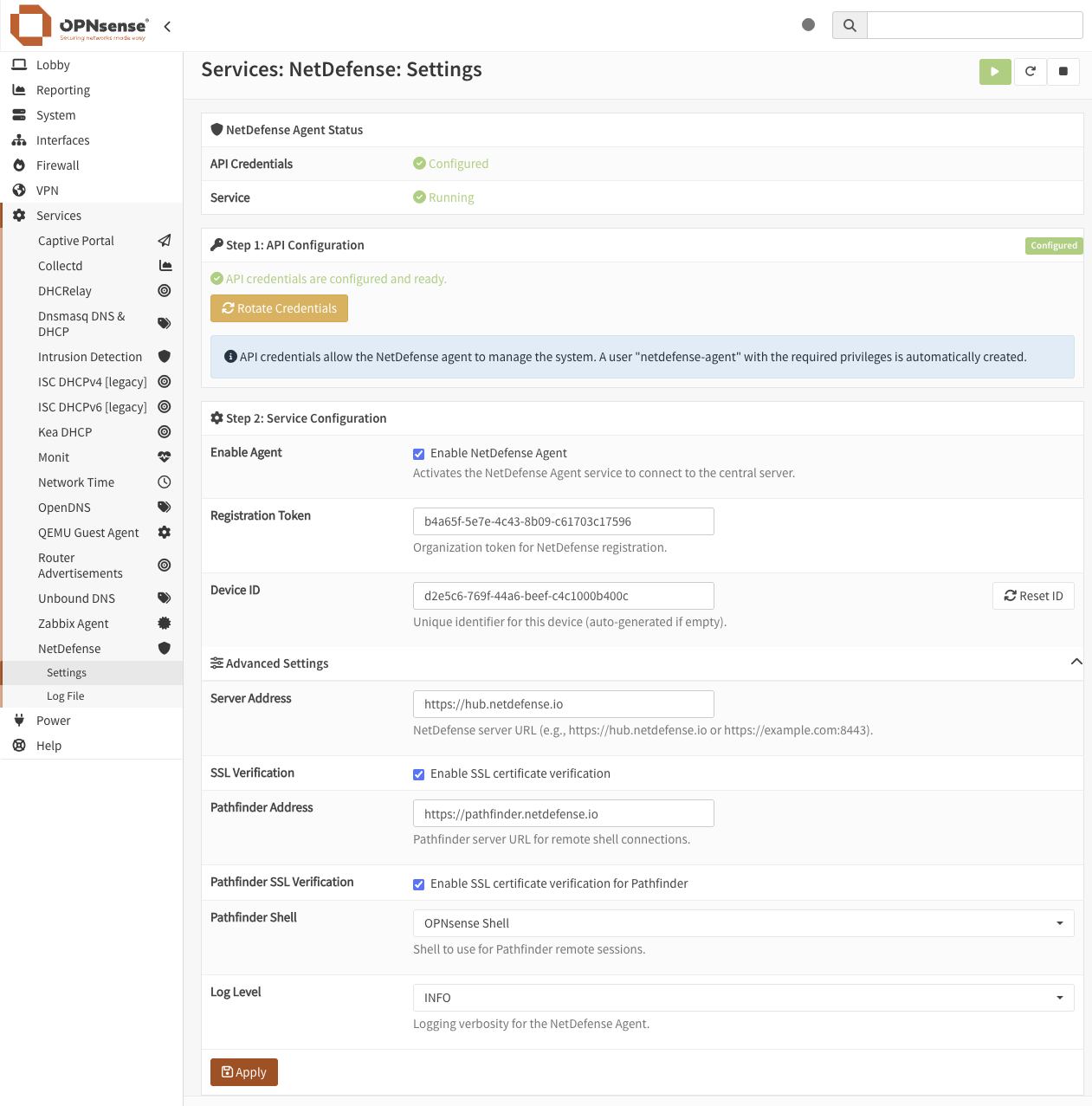
Proceed to the Configuration guide to complete the setup.
Verifying Installation
To confirm the plugin was installed correctly:
-
Via Web Interface: Navigate to Services > NetDefense — the settings page should load without errors
-
Via Command Line:
Terminal window pkg info os-netdefenseservice ndagent status
Repository Configuration Details
| Parameter | Value | Description |
|---|---|---|
url | https://repo.netdefense.io/opnsense | Repository base URL |
priority | 5 | Repository priority |
enabled | yes | Enable the repository |
signature_type | fingerprints | SHA256 signature verification |
fingerprints | /usr/local/etc/pkg/fingerprints/netdefense | Fingerprint directory |
Security Verification
For maximum security, verify the fingerprint from multiple sources before installation:
- 🔐 Repository Server: https://repo.netdefense.io/opnsense/fingerprints/netdefense/trusted/netdefense
- 🌐 Official Website: Published on netdefense.io