Many rules on a fleet of OPNsense firewalls are the same rule with a different address. Every branch lets its LAN reach a DNS resolver, but each branch has its own resolver. Without a fleet tool you write that rule on every box by hand, or copy configuration between boxes and fix the addresses afterwards, and the copies drift the first time someone edits one of them.
This guide writes the rule once in the NetDefense web console, puts a variable where the address goes, and delivers it to every firewall in a group with that firewall’s own value filled in.
TL;DR
- Write the rule once as a snippet, with
${dns_server}where the site’s address goes. - Set the variable for the whole organization, then override it per OU, template or device. A device’s own value always wins.
- Put the snippet in a template and attach the template to an OU.
- Preview which firewalls the sync will reach, sync them, and read each firewall’s list of changes.
The four pieces
- A snippet is one piece of configuration as JSON: a rule, an alias, a DNS override.
- A template is a set of snippets. Its position, PREPEND or APPEND, places its rules before or after the firewall’s own rules.
- An organizational unit (OU) is a group of firewalls, by site, region or role. A firewall can be in several.
- A variable is a named value that a snippet uses as
${name}. It has a value for the organization, and an OU, a template or a device can override it.
The policy chain guide shows how they combine into each firewall’s configuration.
Step 1: Write the rule once
Open Snippets, choose + Create Snippet → Create from scratch, name it allow-dns-to-resolver, pick Rule as the type, and click Create & Edit. In the editor, replace the example content with the rule, using a variable where the address goes. Insert Variable adds a ${name} reference for you.
Click Save Changes. A snippet can name a variable before the variable exists, but any firewall that gets the snippet then fails to build until it does.
Step 2: Give each site its value
Open Variables and click + Create Variable. Name it dns_server and give it the value most firewalls should use, say 8.8.8.8. That’s the organization value.
Then override it where a site differs:
- For a group of firewalls: open the OU, say branch-offices, and under Variable Overrides click + Add Override and give it
10.0.1.53. - For one firewall: open the device, and under Variable Overrides click + Add Override and give it
10.50.1.53.
The order is Device > Template > OU > Organization. A device’s own value always wins. A template’s value beats the OU and organization values, but only for that template’s snippets.
Two OUs, two values
If a firewall is in two OUs that set the same variable to different values, NetDefense won’t guess which one you meant: the firewall fails to build until you remove one of the OU values or give the firewall its own.
Step 3: Put the rule in a template and attach it
Open Templates, click + Create Template, give it a name such as branch-baseline, and leave the position at PREPEND so the rule comes before each firewall’s own rules. On the template’s page, Add snippets… picks the rule.
Then open the branch-offices OU and use Assign Template to attach branch-baseline. Every firewall in the OU now has the rule in its computed configuration, with its own value of dns_server. Nothing has reached a firewall yet.
Step 4: Preview, then sync
Open Synchronize and filter by OU, template, device name or drift state. Matching devices lists exactly which firewalls the sync will reach, and Preview matching devices refreshes it. Leave Mode on Sync now and click Sync. For a recurring sync, switch to On schedule, pick the schedule and click Register. Either way, a dialog asks you to confirm.
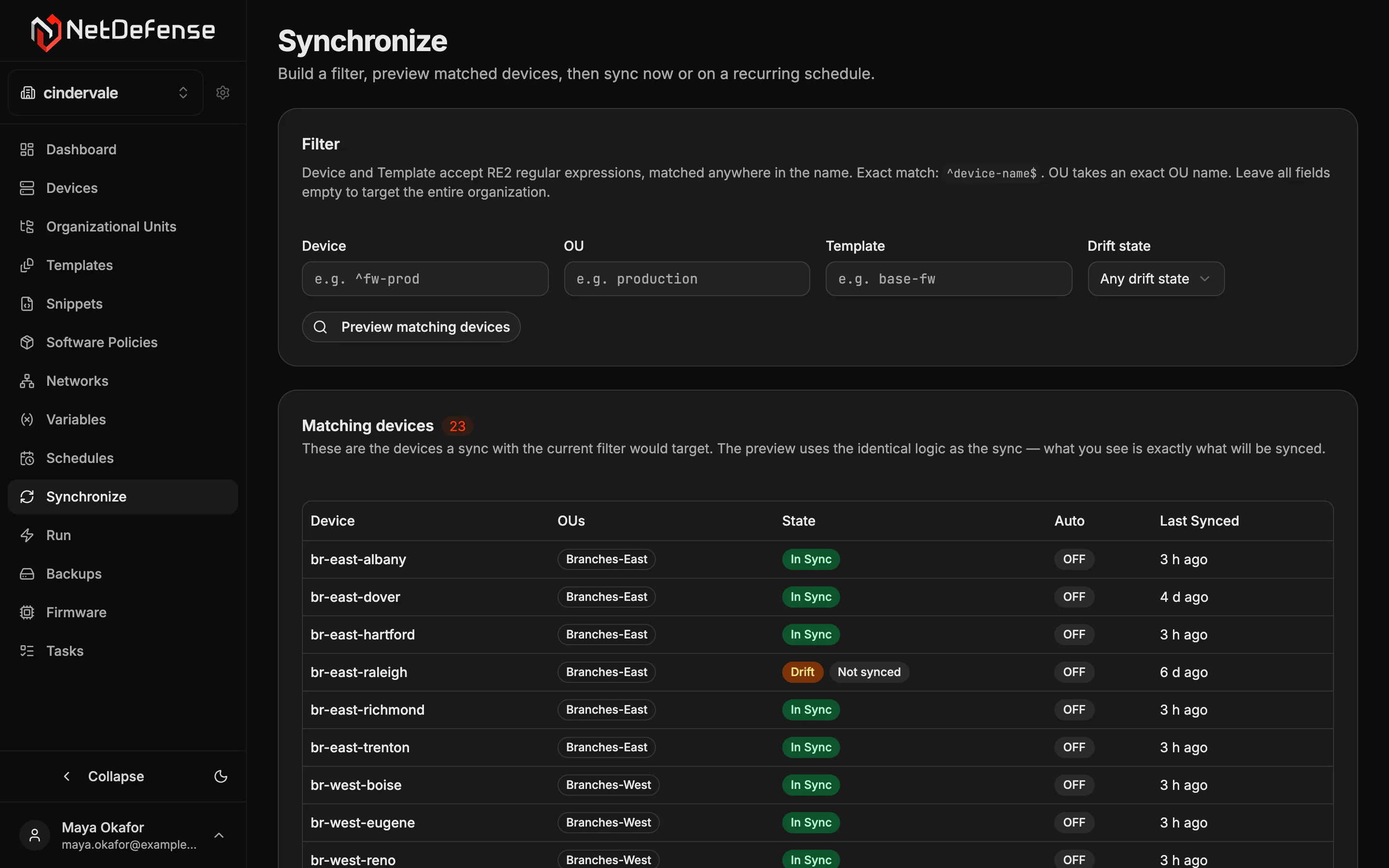
Each firewall gets a sync task. Its page lists every object the sync touched, one line each: + created, ~ updated, − deleted, = unchanged, with any warnings and refusals first. That list is where you confirm that fw-branch-austin got 10.50.1.53 and the rest of the branches got 10.0.1.53: it names a rule by its description, where ${dns_server} is filled in too.
A firewall someone edited by hand
A sync skips a firewall whose configuration already matches what NetDefense last sent, even if someone changed it locally since. To push it again, turn on Force sync on the Synchronize page, or pass —force to ndcli sync apply.
What stays on each firewall
This is the fleet layer, not a replacement for each firewall’s own WebAdmin:
- Interfaces, VLANs and the rest of a box’s own setup stay in its WebAdmin. Variables are how a shared rule meets each firewall’s addresses.
- Your existing rules stay. NetDefense only touches the objects it created. To keep PREPEND rules first, a sync may raise the sequence numbers of a firewall’s own rules, keeping their order.
- A change reaches a firewall when you sync, now or on a schedule. Editing a snippet or a variable doesn’t push anything by itself.
The same thing from the terminal
Every step has an NDCLI equivalent, for scripts and CI pipelines:
The Templates, Variables and Sync & Delivery guides cover each piece in depth.