Backups
NetDefense can periodically pull each device’s OPNsense configuration and upload it to an S3-compatible bucket, encrypted with a key you set. The Backups page is where you wire up the bucket, set the schedule, and opt individual devices in. The concept overview is in Backups.
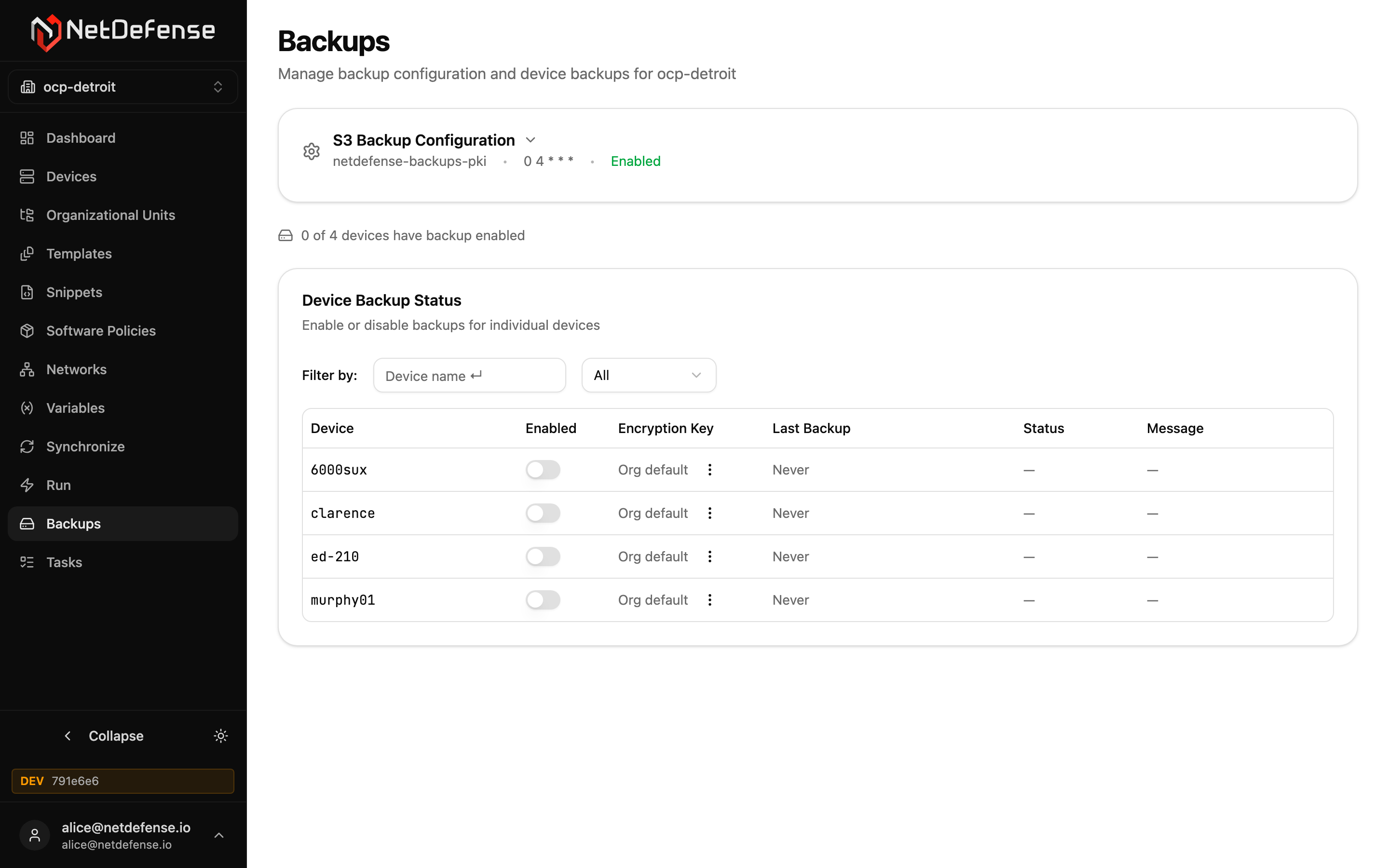
S3 Backup Configuration
Section titled “S3 Backup Configuration”The collapsible card at the top holds organization-wide settings — bucket name, the named schedule that drives backup runs, the access key, the endpoint URL, and the default encryption key. Collapsed, it reads the bucket, the schedule and the configuration’s status: Scheduled, Not scheduled — won’t run when no schedule drives it, or Disabled. Expanded, the status sits on the right, beside the switch that turns the configuration on or off.
Click the chevron next to the configuration to expand it. Edits to this card affect every device that’s opted in.
Below the card you’ll see a count like 0 of 4 devices have backup enabled — a quick way to spot organizations where you’ve configured S3 but haven’t yet turned backups on for any device.
Device Backup Status
Section titled “Device Backup Status”The table lists every device with:
| Column | Meaning |
|---|---|
| Device | Name of the device. |
| Enabled | Per-device toggle. Off devices are never backed up even if the S3 config is enabled. |
| Encryption Key | Org default uses the key from the S3 Backup Configuration card. The kebab menu lets you set a per-device key for stricter isolation. |
| Last Backup | When the last backup finished, whether it succeeded or failed, or Never. |
| Status | SUCCESS, Failed or In Progress, or — if no backup has run yet. |
| Message | The last backup’s message: where it was uploaded, or why it failed. Hover it for the full text. |
Use the filter bar to find a device by name or by enabled/disabled state.
When a scheduled backup runs, each device gets a BACKUP task you can drill into from Tasks.
To back up now instead of waiting for the schedule, use the Backup command on Run. It backs up the devices you target that have backup enabled in this table. Recurring backups are set up here, on this page.
To view or change the backup schedule, click the chevron to expand the S3 Backup Configuration card and select a different schedule from the dropdown. Schedules are managed from the dedicated Schedules page. The recurring backup task appears in the Scheduled specs tab on Tasks.