Organization management
The non-tenant parts of NDWeb — the things that aren’t scoped to one organization — live in three pages: Organizations, reached from Manage Organizations in the organization switcher at the top of the sidebar, and Invitations and Settings, in your avatar menu at the bottom of it. The avatar menu also holds Support, the selected organization’s support tickets.
Organizations
Section titled “Organizations”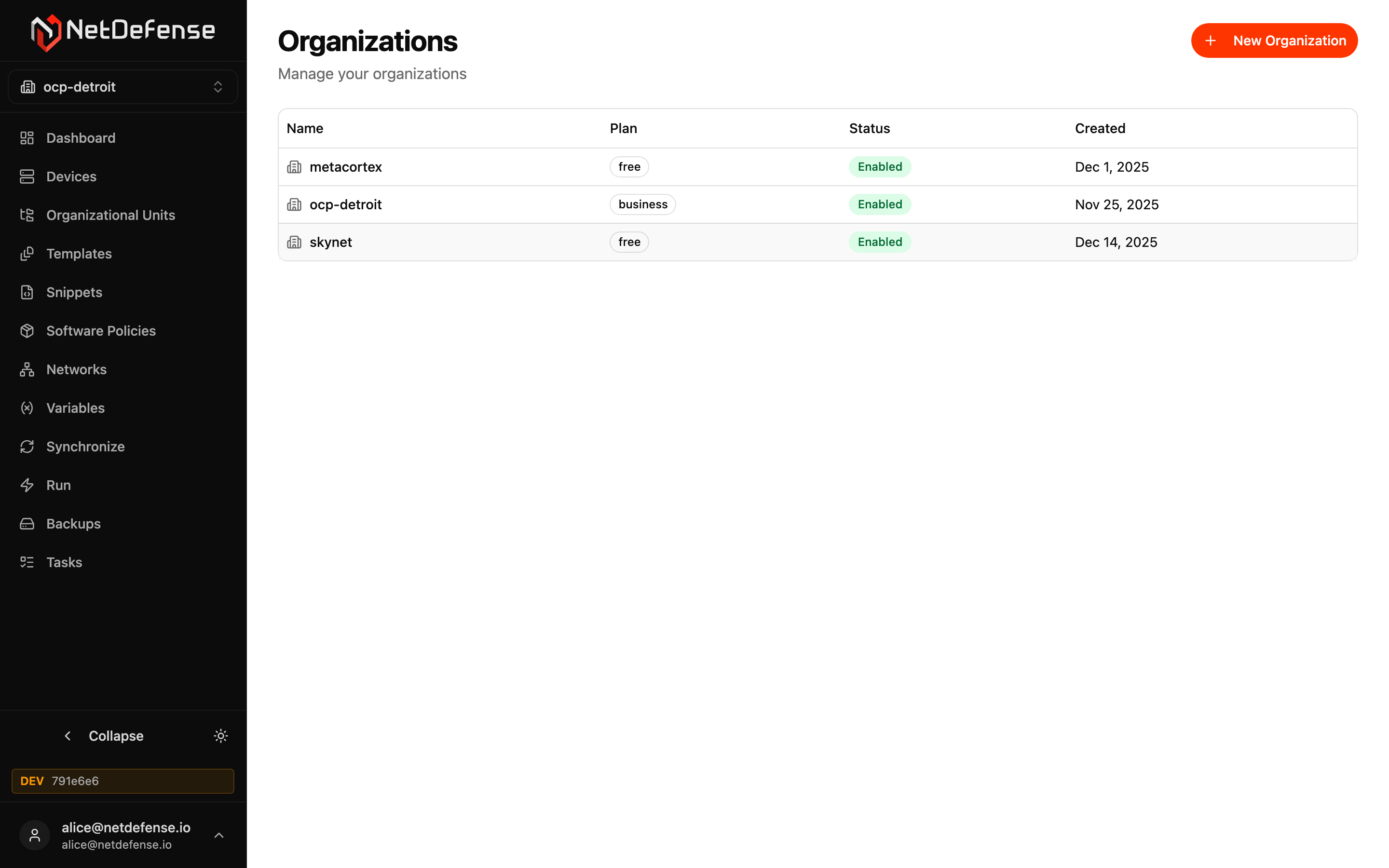
The Organizations page lists every organization your account belongs to, with the plan tier, status, and creation date. Click a row to switch the active organization (same effect as the sidebar switcher).
+ New Organization in the top-right opens the same dialog as during onboarding — a name is the only required field, and you become the new organization’s first admin.
From an organization row you can open its detail page to manage members and invitations for that organization specifically (the Members page).
Invitations
Section titled “Invitations”The Invitations page is where you handle invitations sent to your account and review invitations you’ve sent from organizations where you’re an admin.
The page has two tabs:
- Received — every pending invitation to your email. Each card shows the inviting organization, who sent it, when it was sent, and the role you’ll get if you accept. Accept joins the organization immediately; Decline dismisses the invitation.
- Sent — invitations you’ve sent that haven’t been accepted yet, each with Revoke.
The number beside Invitations in your avatar menu counts the pending Received invitations. The badge on your avatar adds them to the selected organization’s support tickets that are waiting for a reply from your side.
Settings
Section titled “Settings”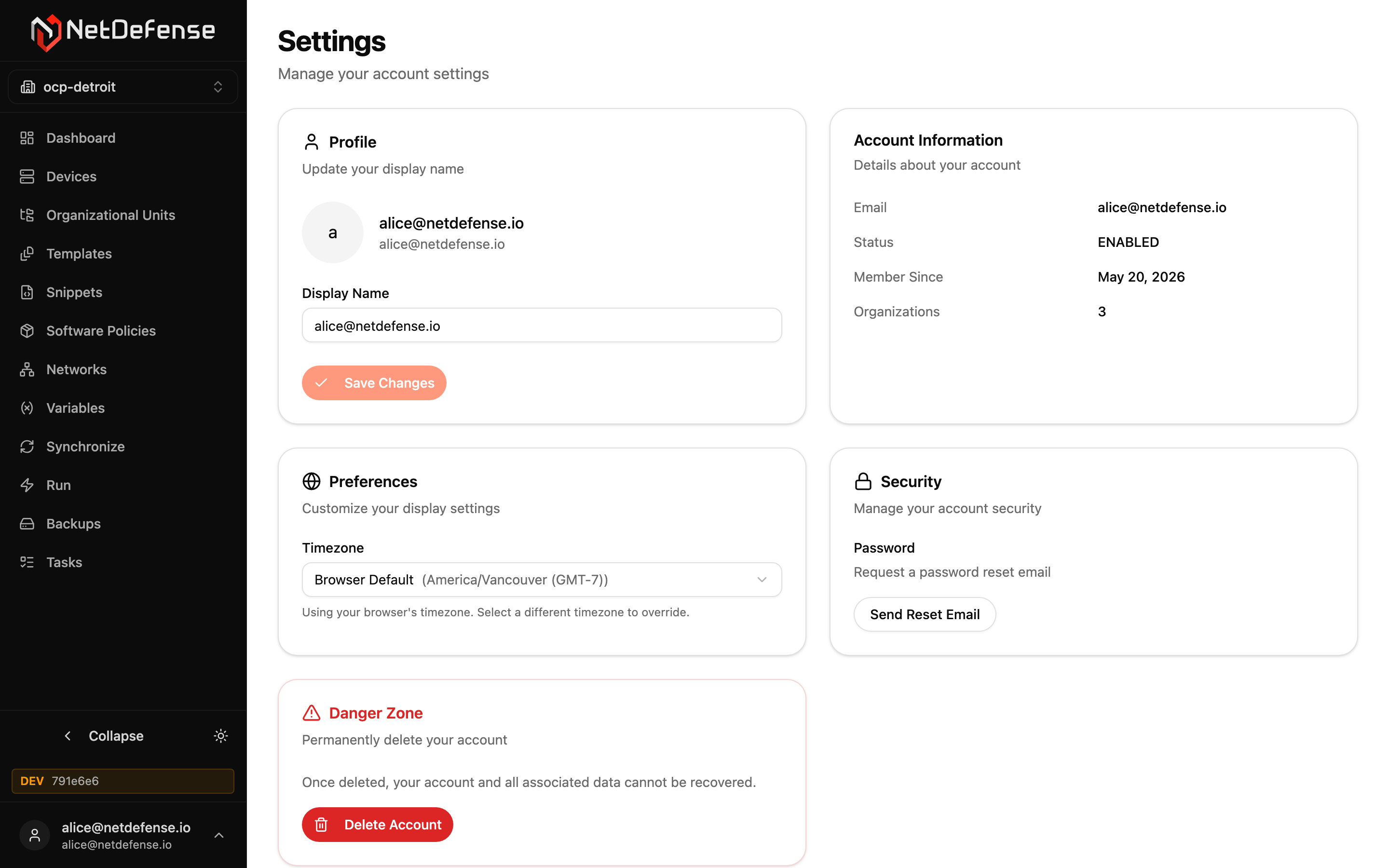
Settings is your per-account page — what you see here applies across every organization you belong to.
Profile — change the display name shown next to your avatar and on members lists. Email is fixed (it’s tied to your login identity).
Account Information — read-only: email, status, when you became a NetDefense user, and how many organizations you’re in.
Preferences — display preferences. The timezone selector defaults to your browser’s timezone and overrides timestamps in the rest of NDWeb (e.g. scheduled tasks fire at the time you’d expect them to).
Security — only shown if you sign in with an email and password: request a password-reset email. NetDefense doesn’t store your password; this delegates to the identity provider.
Personal Access Tokens — create, list and revoke the tokens that let NDCLI authenticate without a browser, through the NDCLI_TOKEN environment variable, in CI/CD pipelines for example. See Personal Access Tokens.
Danger Zone — permanently delete your account. Deletion is irrecoverable; the action removes your account from every organization where you’re a member and clears all personal data.
Per-organization Members page
Section titled “Per-organization Members page”Inside any organization, an admin can open the Members page (from the Organizations list → click the org → Members) to:
- See every account in the organization with role, status, and join date.
- Change a member’s role between Read-Only, Read-Write, and Admin.
- Disable or re-enable a member without removing them.
- Invite new members by email (this is what shows up under Received for the invitee).
- Revoke a still-pending invitation.
Members can also leave an organization themselves from this page if they’re not the only Admin.