Devices
The Devices section is where you browse the firewalls in the active organization, dig into any one of them, and act on it: sync it, or open a remote terminal. Commands such as restart are on the Run page.
Devices list
Section titled “Devices list”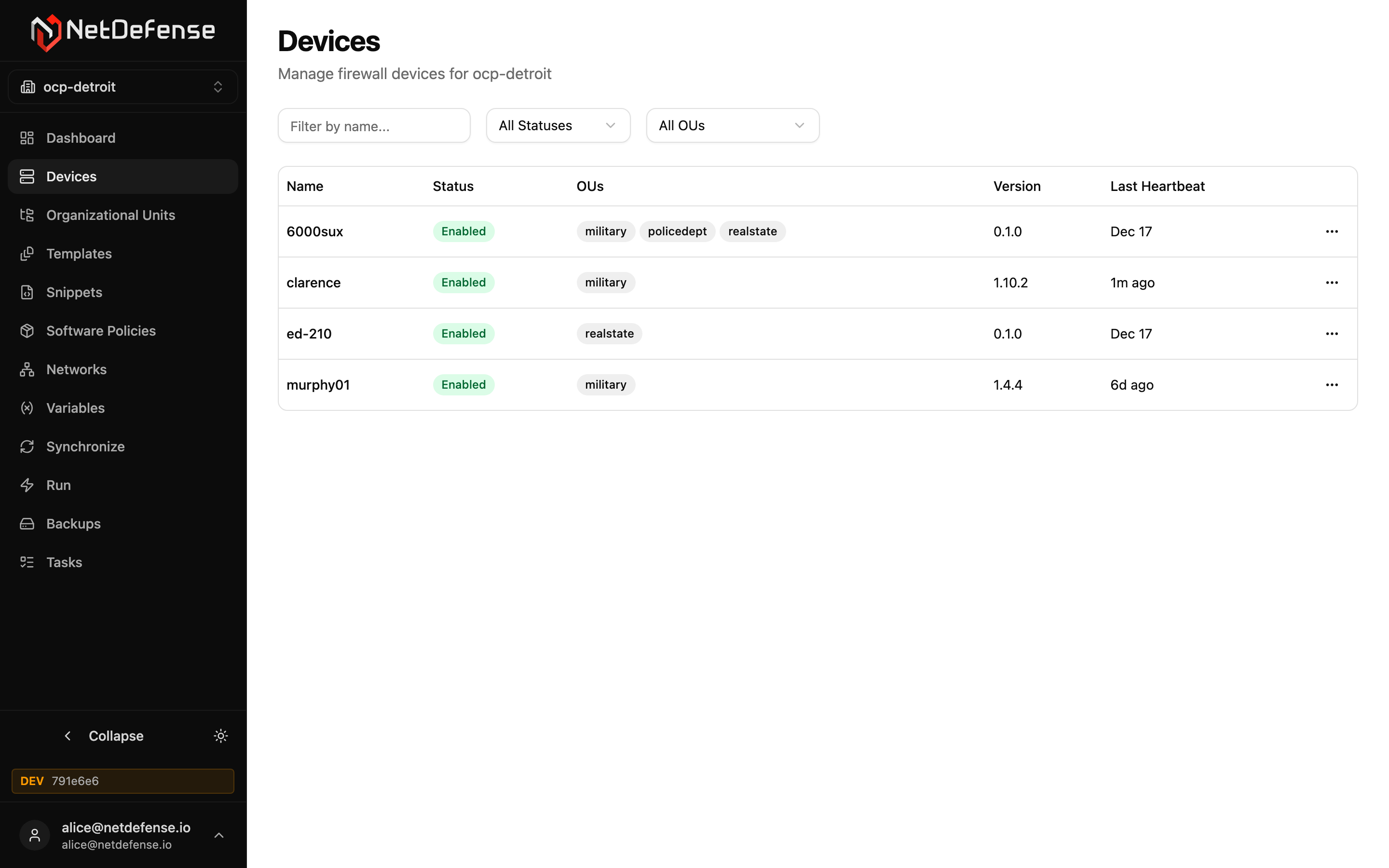
Each row is one enrolled device:
| Column | Meaning |
|---|---|
| Name | Friendly name set at enrollment. Click it to open the detail page. |
| Status | Enabled, Pending (awaiting admin approval), or Disabled. |
| Drift | Whether the device’s running configuration matches what NetDefense last delivered: In Sync, Drift, Never Synced, Unknown or Error, or — when the device has no drift state yet. See Drift Detection. |
| OUs | Every organizational unit the device belongs to. |
| Version | Reported NDAgent version. Drift between devices is a hint to plan an update. |
| Last Heartbeat | How long ago the device checked in. A long gap means the device is offline. |
An organization that has a firmware configuration gets one more column, Firmware. Each cell is a pill with the device’s track and pin, such as Fast · 26.7.3, Regular · held, Fast · enrolling or leaving Stable, with — for a device in no track. An amber mark means the pin was changed outside NetDefense. The track list is read when the page opens, so a move made on the Firmware page shows the next time you open the list. An organization without a firmware configuration sees no trace of the column.
The filter bar above the table accepts a name substring and dropdowns for status, OU, and drift status. The … menu on each row exposes per-row actions: Approve, Rename, Delete.
Read about device approval, identity, and the v=2 rebind flow in Device Identity.
Device detail
Section titled “Device detail”Clicking a device opens its detail page. The header shows the device name, an online badge (online, offline, or unknown while the page can’t refresh), its status badge, when the device was created and last updated, and the action buttons:
- Approve (pending devices) — approves the device.
- Connect (enabled devices) — opens the browser-based access screen with a terminal and WebAdmin proxy for this device.
- Sync (enabled devices) — pushes the current computed configuration to the device. The action is also available in bulk from the Synchronize page.
- Delete — Permanently deletes the device. On its next contact the device removes all NetDefense-managed configuration (firewall rules, aliases, VPN, users, external authentication servers, certificates and CAs, package repositories) except certificates and CAs still in use by a service, uninstalls the NetDefense agent and repository, and cannot be restored. Re-adding it requires a fresh installation. It also can’t be re-bound. See Remove a Device for the full behavior, including what to check first if you rely on this device for remote access.
Live telemetry
Section titled “Live telemetry”The Live telemetry panel at the top shows the device’s latest report and refreshes every 30 seconds. Click its title to collapse it.
- Device — name, agent version, OPNsense version, and sync state.
- Resources — uptime, CPU count, load, memory, and swap.
- Disks — usage per mount point.
- Pending updates — the OPNsense verdict, as on the Dashboard, with where its “latest” came from; the agent version against the latest release; how many packages are pending;
reboot requiredwhen the pending updates need a reboot; and when the device last checked for updates. - Services — the monitored services that aren’t running, with every service under All services.
- Certificates — each certificate with its expiry date, flagged when it has expired or expires within 30 days.
When data is missing or old:
- A device that’s offline, or hasn’t reported for about 3 minutes, keeps its last report on the page for up to 7 days, with a note such as
Showing the last report, received 12 min ago. The device is offline.The Resources, Disks, Pending updates, Services, and Certificates cards are faded and dated (as of 12 min ago). Pending updates, Services, and Certificates also fade when their reading is more than 35 minutes old. - The OPNsense version reads
(last report)or(reported at connect)when it doesn’t come from a current report. - A card without data says
Not collected yet., and so does the whole panel when the device has no report at all. Pending updates saysAll packages up to date.only after a completed update check: before the first one it saysNo check completed yet., and after a failed one,The last check failed. - If the page can’t refresh, it keeps the data it has, the online badge reads
unknown, and the panel gives the time of the data shown.
Other cards
Section titled “Other cards”- Facts — hostname, timezone, OPNsense and operating system versions, and interfaces, as the device reports them. Informational only; the card is hidden until the device reports any.
- Firmware track — shown only for an organization that has a firmware configuration. For a device in a track it gives the track, state, the release it is pinned at, its series and its last step, any hold reason, a Series upgrade verdict, and a Manage on the Firmware page link. It has a Boot environment before a major (ZFS) switch, on by default, and lists the device’s Recent steps. For a device in no track it says
This device is not in a firmware track: NetDefense changes nothing about its OPNsense updates.and links to Add it to a track on the Firmware page. - Drift Status — last heartbeat, last successful sync, and current drift status, with when drift was last checked.
- Recent tasks — the device’s five latest tasks, newest first, without Connect sessions. Each shows its status, its name, which opens the task’s own page, its one-line result, or why it’s waiting, and the same When text as the Tasks page, such as
Finished 37 min ago. All tasks of this device opens the Tasks page on this device’s tasks over the last 30 days, under a Device chip: this device only, not one whose name contains this one’s, nor a deleted device that had the same name. The card is read again every minute, and right after a Sync from this page. - Organizational Units — the OUs this device belongs to, with chip-style removers and an Add to OU… picker.
- Variable Overrides — variables overridden specifically for this device. Click Add Override to override an organization-level variable for this device only; the pencil and trash icons edit and remove existing overrides. See Variables for the full scoping model.
- VPN Networks — every overlay network the device is a member of, with its overlay IP and a HUB/SPOKE badge.