Dashboard
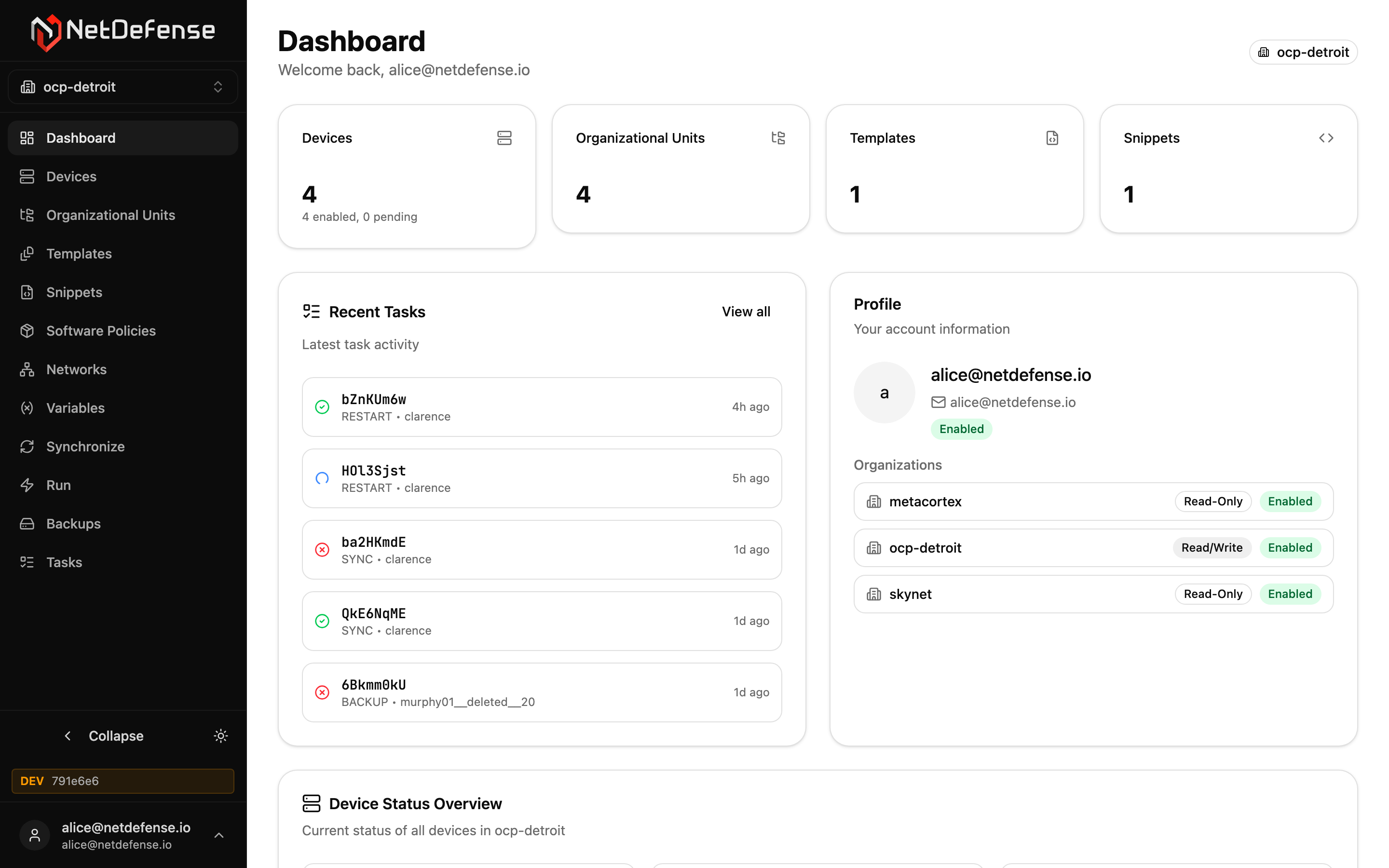
The Dashboard is the landing page after sign-in. It’s a per-organization view of your fleet: every panel reflects the organization shown in the sidebar switcher, and the page refreshes itself every minute.
What you see
Section titled “What you see”On a screen 1,280 pixels wide or more, Action items and the three charts share the first row, Action items on the left; on a narrower screen Action items comes first, above the charts.
Action items
The fleet’s to-do list. Each row counts the devices that need the same thing — offline for more than a day, a failed sync, services not running, expired certificates or certificates expiring within 30 days, pending updates, an outdated OPNsense release, a newer OPNsense series, an outdated agent, or no recent data — most urgent first. A row for the whole organization appears when backups are enabled but have no schedule. Click a row to list its devices, then a device name to open it. When nothing needs doing, the panel says Nothing needs attention right now.
Devices, Sync, and Tasks · 24h Three donut charts. Devices and Tasks · 24h show their total in the middle, and Sync shows how many devices are in sync:
- Devices — Online, Stale (not connected, but heard from in the last 3 minutes), Offline, Disabled, and Pending (awaiting admin approval).
- Sync — In sync, Drift, Error, and Never. A Drift device has had its running configuration changed outside of NetDefense since its last sync — see Drift Detection.
- Tasks · 24h — the tasks created in the last 24 hours, by status: Completed in green, Running, Waiting and Scheduled in three shades of blue, Failed in red and Expired in amber. Every task type counts, Connect sessions included. Canceled tasks aren’t counted.
Click a Devices or Sync slice to list its devices. On Tasks · 24h, click a legend row that has a count: it opens the Tasks page on the matching status preset over the last 24 hours, with Connect sessions included. Completed opens Completed; Running, Waiting and Scheduled open Active; Failed and Expired open Needs attention. A chart’s legend sits beside it when its card is wide enough, and under it otherwise.
OPNsense versions and Agent versions (middle row) Each is a single bar with one segment per version, sized by how many devices run it. Click a segment, or its chip below the bar, to list the devices on that version. Each title names what the versions are measured against — see OPNsense versions and updates.
Fleet (bottom) One row per device, the devices that need the most attention first:
| Column | Meaning |
|---|---|
| Device | Name, a status dot, and its organizational units. Click it to open the device page. |
| Heartbeat | How long ago the device last checked in: green up to 90 seconds, amber up to 10 minutes, red after that. |
| Status | One slot per check: Heartbeat, Sync, Services, Updates, Certificates, OPNsense, and Agent. A slot is green when all is well, amber or red when something needs attention, blue for information, and grey when there’s no data. Hover a slot for the details, or click it to jump to that part of the device page. |
| Agent | The agent version the device runs. |
OPNsense versions and updates
Section titled “OPNsense versions and updates”NetDefense compares each device’s OPNsense version with the newest release of the device’s own series. It learns the newest releases from two places:
- OPNsense’s official release index, which NetDefense reads every hour. It lists the newest release of each series.
- The firewall’s own package catalog. From agent 1.22.1, each device reports the OPNsense release its catalog offers, as of its latest update check.
A Community Edition device is measured against whichever of the two is newer. Business Edition devices rely on the firewall’s own catalog; pre-release and development builds aren’t compared.
The OPNsense versions title names its reference: latest 26.7.5 (upstream, 12 min ago) when it comes from the official index, with the time NetDefense last read it, or newest in fleet 26.7.5 when NetDefense can only compare your devices with each other. The Agent versions title works the same way: latest with the newest published agent release, or newest in fleet when no release is known.
Each OPNsense version is coloured against the newest release of its own series: green when current, then lime, yellow, amber, and orange as it falls further behind, and grey when it can’t be compared, such as a pre-release or development build. Running an older series never turns a version red. When some devices run an older series than the newest one, a blue chip beside the title says so: 26.7 series available, or 26.7 series in fleet when the reference is only the newest in your fleet.
On each device row, the OPNsense slot gives the verdict:
| Slot | Meaning | Next step |
|---|---|---|
Amber: 26.1.9 → 26.1.11 available | Update available. A newer release of the device’s own series is out. | A minor upgrade |
Blue: 26.7 series available | Newer series available. The device is current in its series, and a newer series is out. This is information, not a warning. | A major upgrade, on a planned window |
Green: latest in its series | Nothing newer is out in the device’s series. | None |
| Grey | No version collected yet, a pre-release or development build, or nothing to compare the version with. | None |
A device that’s in a firmware track is updated by its track’s windows, not by the actions in the last column. These verdicts are the device’s own telemetry, whether or not a track manages it.
A device that’s behind in its series while a newer series is also out stays amber, and its slot names both. Hover the slot to see where its “latest” came from (per OPNsense upstream or per the device's firmware check) and when the device last checked. Action items counts the same verdicts as on outdated OPNsense and with a newer OPNsense series available.
Last-known data
Section titled “Last-known data”A device’s data doesn’t disappear when it stops reporting. Restarting the agent or rebooting the firewall doesn’t blank it, and when a device goes offline, its last report stays on the dashboard and on its device page for up to 7 days: versions, pending updates, services, certificates, and load.
- Last-known data is greyed and dated. Data from a device that’s offline, and any reading more than 35 minutes old, is faded and labelled with its age (
as of 2 h ago). An action item counted from such data says so:(last known, as of 5 d ago). - Online status is always live. The Heartbeat slot and the device page’s online badge follow the device’s live connection. A last report never makes a device look online, and an offline device’s Heartbeat slot is never faded.
- Missing data is never shown as all clear. A slot without data is grey and reads
not collected yet. While any device lacks recent data, Action items lists it under devices without recent data instead of showing the all-clear. - A failed refresh keeps the last good view. If a refresh fails, the dashboard keeps showing what it last loaded, under a Couldn’t refresh the fleet overview banner with that data’s time, and retries every minute.
The CLI and the MCP tools show live data only: a device that hasn’t reported for about 3 minutes shows no telemetry there.
What you can do from here
Section titled “What you can do from here”- Switch organizations with the sidebar switcher (top-left).
- Open a device from its Fleet row, a Status slot, a version list, or an action item.
- Open the Tasks page on a status preset from the Tasks · 24h legend.
- Open the profile menu (your avatar at the bottom-left of the sidebar) for Invitations, Settings, and Logout.
The Dashboard does not let you make changes — it’s a read-only summary. Every actionable area has its own dedicated page.