Support
The Support area holds your organization’s support tickets: conversations between your organization and NetDefense Support. Open a ticket when something doesn’t work, follow the replies, and close it when you’re done. Every member of the organization can use it, whatever their role, Read-Only included.
The same tickets are available from the command line with ndcli support.
Open the Support area
Section titled “Open the Support area”Open your avatar menu at the bottom of the sidebar and choose Support. On a phone, Support is in the navigation menu. The entry appears once an organization is selected, and the Support area always shows that organization’s tickets.
A number beside Support counts the organization’s tickets that are waiting for a reply from your side (status Pending). The badge on your avatar adds it to your pending invitations, so you see it with the sidebar collapsed too.
Ticket list
Section titled “Ticket list”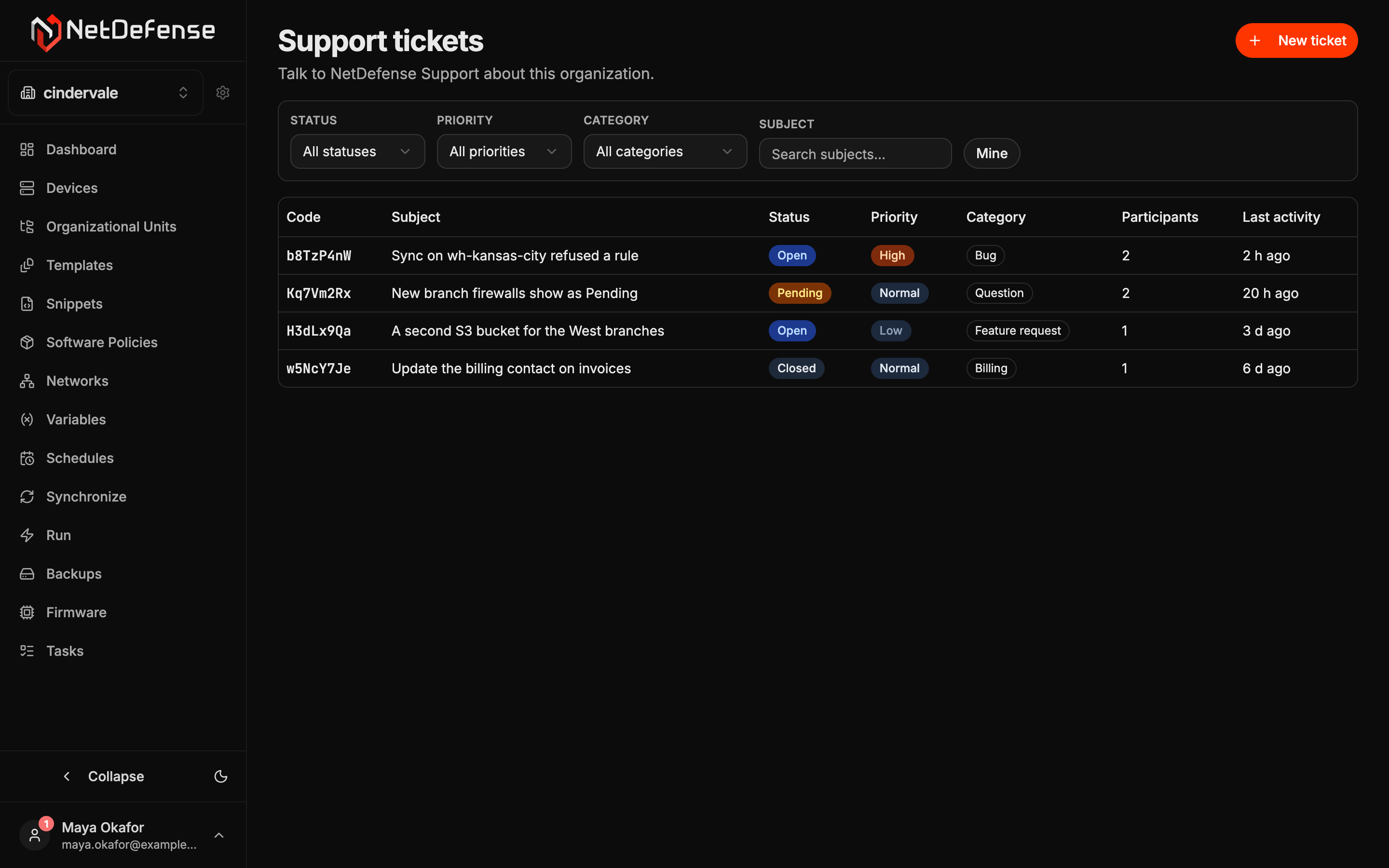
Support tickets lists every ticket in the organization, most recent activity first, with its Code, Subject, Status, Priority, Category, number of Participants and Last activity. Click a row to open the ticket.
Narrow the list with the Status, Priority and Category filters, a Subject search, and Mine, which keeps the tickets you take part in.
Every member sees every ticket of the organization. Taking part decides who gets emails, not who can read a ticket.
Ticket status
Section titled “Ticket status”| Status | Meaning |
|---|---|
| Open | Waiting for NetDefense Support. A new ticket starts here, and a reply from your side brings a ticket back here. |
| Pending | NetDefense Support replied and is waiting for your side. |
| Closed | Done. Either side’s reply reopens it, and so does Reopen. |
An internal note never changes the status.
Open a ticket
Section titled “Open a ticket”Click New ticket and fill in the form:
| Field | |
|---|---|
| Subject | Required. One line, up to 255 characters. |
| Message | Required. What happened, what you expected, and what you already tried. Up to 64 KiB, counted in bytes, so text in non-Latin scripts reaches the limit sooner. |
| Priority | Low, Normal (the default), High or Urgent. |
| Category | Bug, Question, Feature request, Billing or Other (the default). |
| Related devices | Up to 20 of the organization’s devices that the ticket is about. |
| Other participants | Members of the organization to keep informed, up to 24. You’re added as the ticket’s creator automatically. |
| Attachments | Up to 10 files of 25 MiB each. See Attachments. |
Create ticket opens the ticket and takes you to it. You get an email receipt, and each participant you added gets an email too.
Messages are plain text: Markdown, HTML and links show exactly as you typed them.
A ticket’s page
Section titled “A ticket’s page”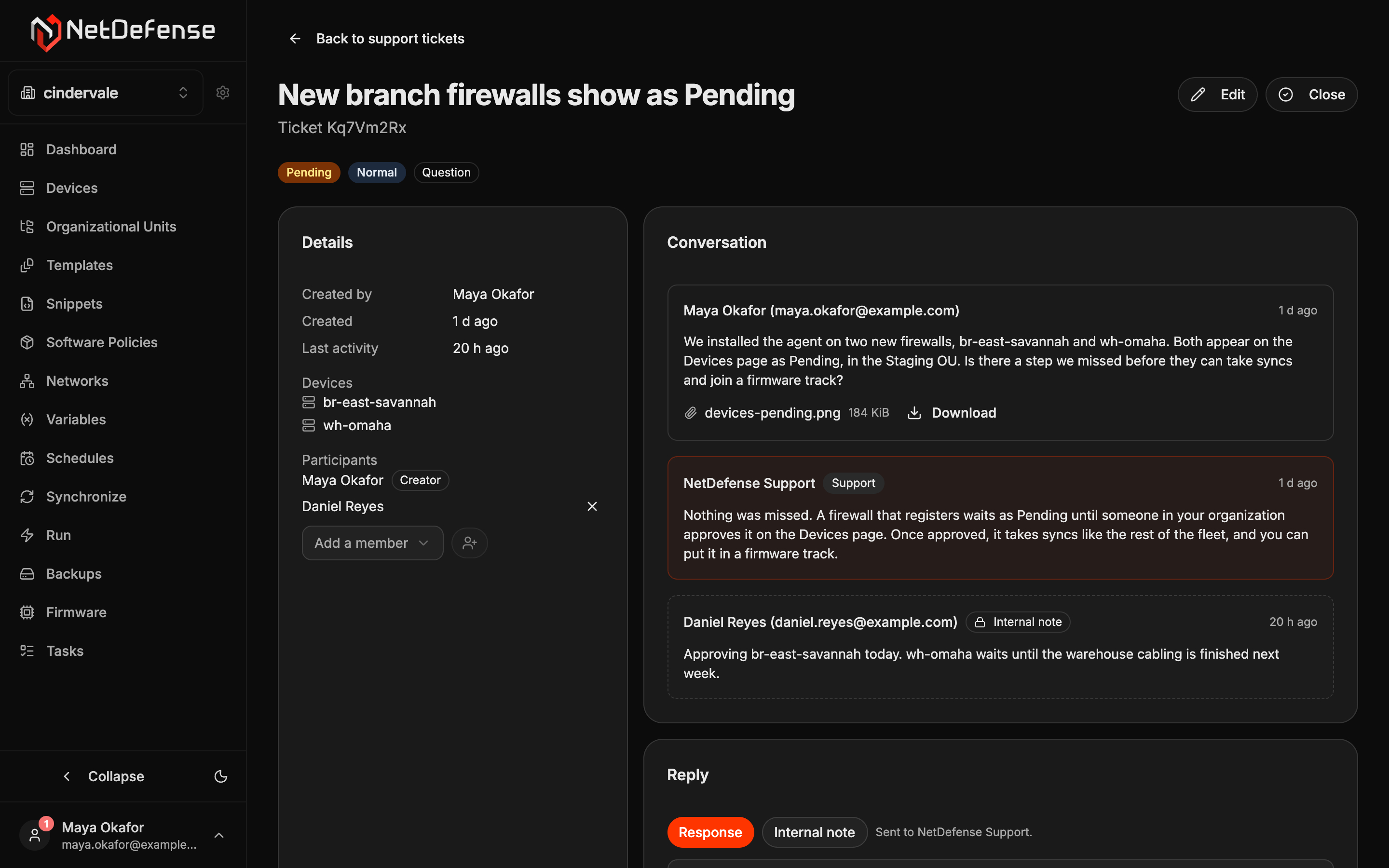
The page header shows the subject and the ticket code, with Edit and Close (or Reopen on a closed ticket). Badges show the status, priority and category.
- Details: who created the ticket and when, its last activity, when it was closed, its related devices (each links to its device page), and its participants.
- Conversation: every message, oldest first. Replies from NetDefense Support carry a Support badge, and internal notes an Internal note badge.
The page refreshes every 30 seconds, so a new reply appears without a reload. It shows a ticket’s first 500 messages; read a longer thread with ndcli support messages.
Reply or add an internal note
Section titled “Reply or add an internal note”The Reply box at the bottom of the page posts one of two kinds of message:
- Response: sent to NetDefense Support. A response on a closed ticket reopens it.
- Internal note: visible to your organization only. NetDefense Support never sees it.
Type the message, attach files if you need to, and click Send. The counter under the box shows how much of the 64 KiB limit the message uses.
Edit, close and reopen
Section titled “Edit, close and reopen”Edit changes the subject, priority, category and related devices. It works on a closed ticket too, sends no email, and doesn’t count as activity.
Close and Reopen ask for an optional message. The message is posted as a response, so NetDefense Support sees it, and the other participants’ notification carries it.
Participants
Section titled “Participants”The Details card lists the participants. The creator is marked Creator. A participant whose account or membership is no longer enabled is marked Disabled and gets no email.
- To add a participant, pick an enabled member under Add a member and click the add button. They get an email saying so.
- To remove one, click the × beside their name and confirm. They stop getting emails about the ticket, but can still read it like every member. The creator can’t be removed; you can remove yourself.
A ticket has at most 25 participants, its creator included.
Attachments
Section titled “Attachments”Attach files adds up to 10 files of any type to a message, 25 MiB each. Files upload as soon as you pick them, and Send and Create ticket stay unavailable until every upload has finished. A file attached to a message stays with it.
Each attachment in the conversation has a Download button. Downloads are always saved as a file, never opened in the browser.
Email notifications
Section titled “Email notifications”Participants get an email when:
- a ticket is opened (the creator gets a receipt),
- they’re added to a ticket,
- someone replies: NetDefense Support, or anyone in your organization,
- someone in your organization adds an internal note,
- the ticket is closed or reopened.
Apart from the receipt for a new ticket, nobody is emailed about their own action. Editing a ticket or removing a participant sends no email. The email’s subject reads like [NetDefense] New reply on ticket #Kq7Xb2Lm: <subject>. It carries the ticket’s status and priority, the author, up to 2,000 characters of the message, and a link to the ticket.
Replies to these emails are not monitored. Answer on the ticket’s page, or with ndcli support reply.
From the command line
Section titled “From the command line”Every action on this page has an ndcli support command. For example:
ndcli support list --status PENDINGndcli support reply Kq7Xb2Lm --message "Here's the output you asked for." --attach health.txtSee the ndcli support reference.